

Editing and Downloading
How to refine your headshots with the Magic Editor and download them
 Written by Loris Siegenthaler · Founder
After generation, you can preview, edit, upscale, and download your headshots for professional use.
Preview Mode
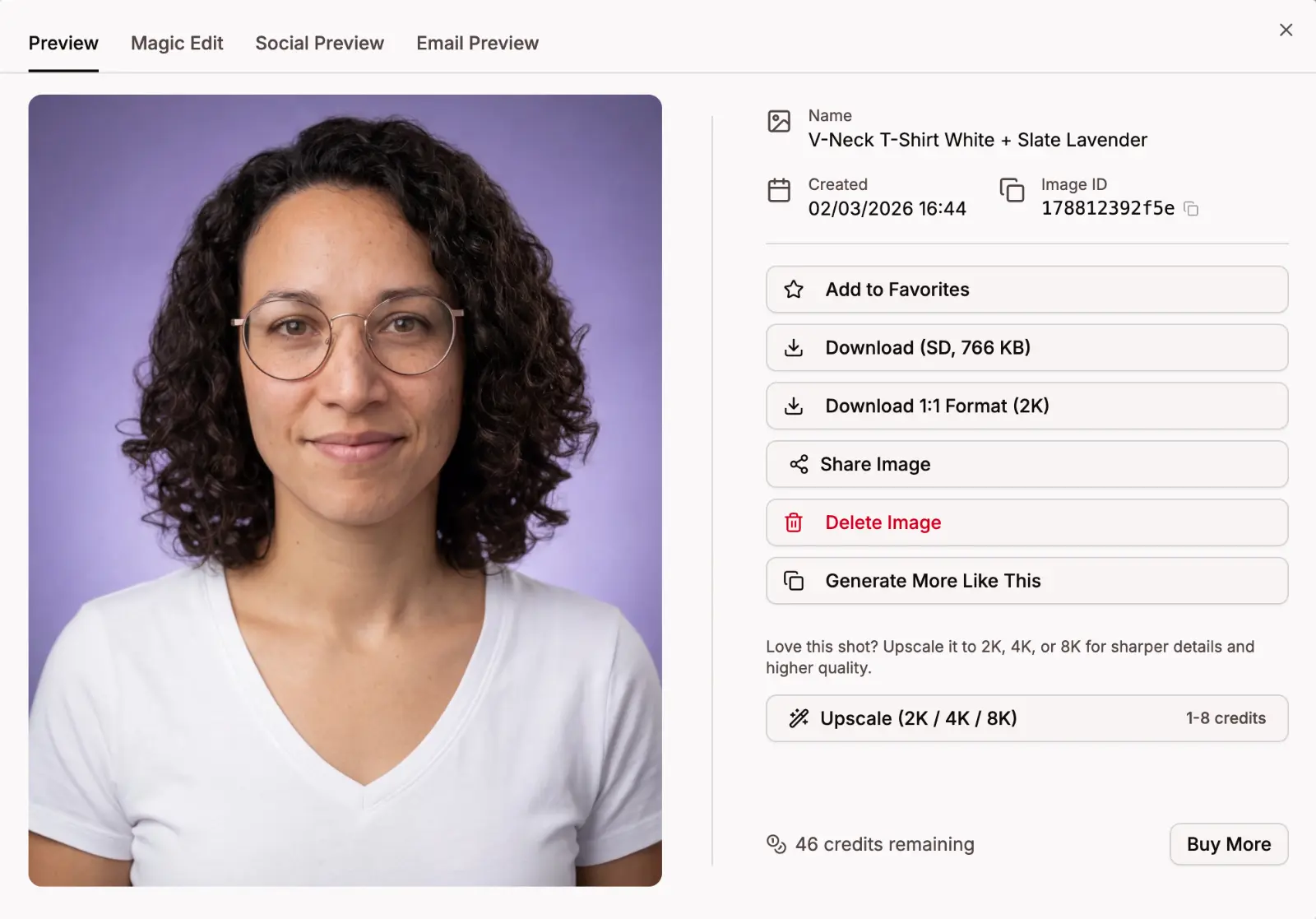
Click on any headshot to open it in preview mode. From here you can download the image, mark it as a favorite, upscale it to higher resolution, or open it in the Magic Editor.
Upscaling
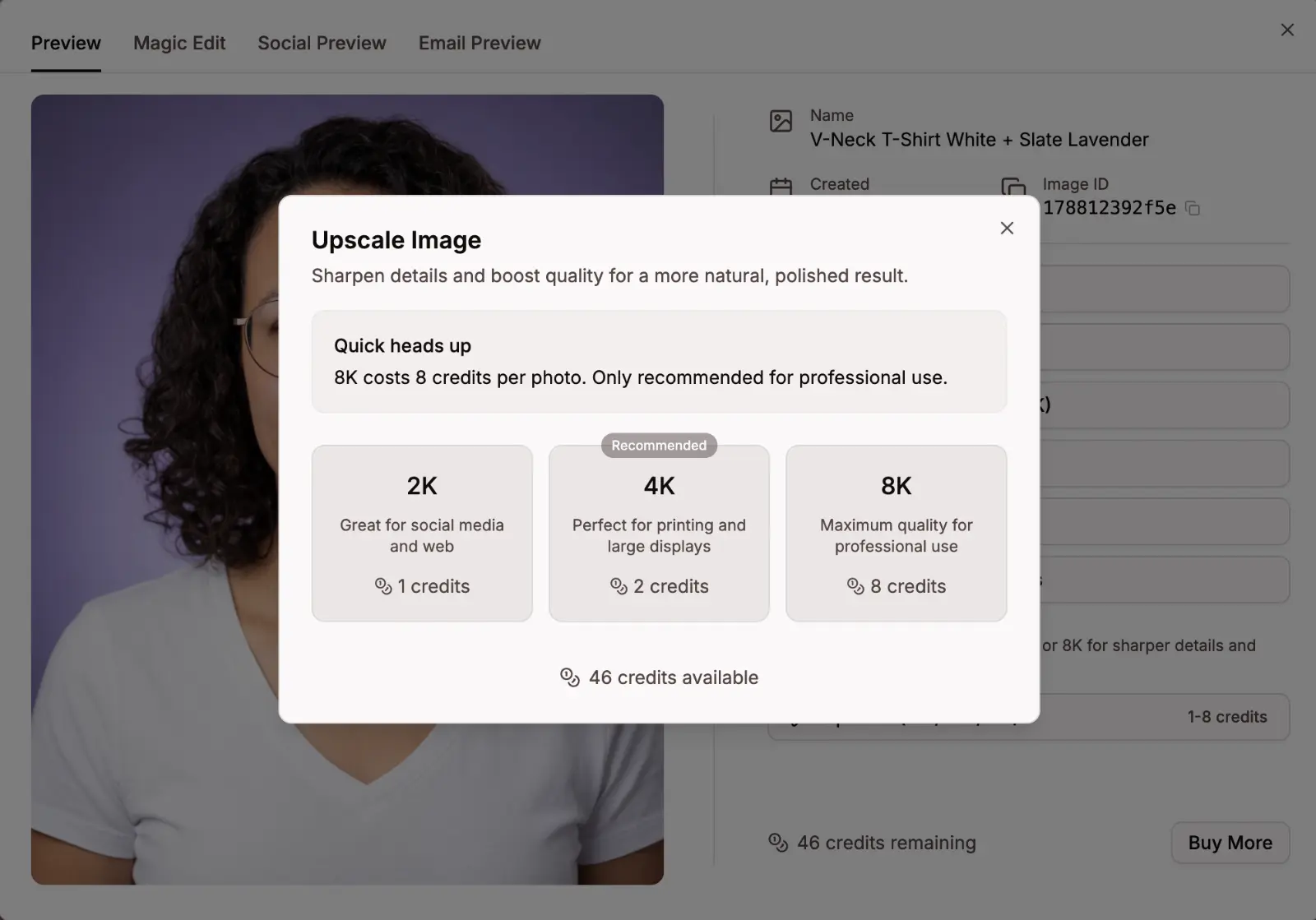
Generated headshots are already usable, but upscaling enhances clarity, sharpens details like eyes and hair, and produces a higher-resolution image. Open the preview and choose your target resolution:
- 4K (4096px) — 2 credits, ideal for print, posters, and large displays
- 8K (8192px) — 8 credits, maximum detail for large-format printing
Editing with the Magic Editor
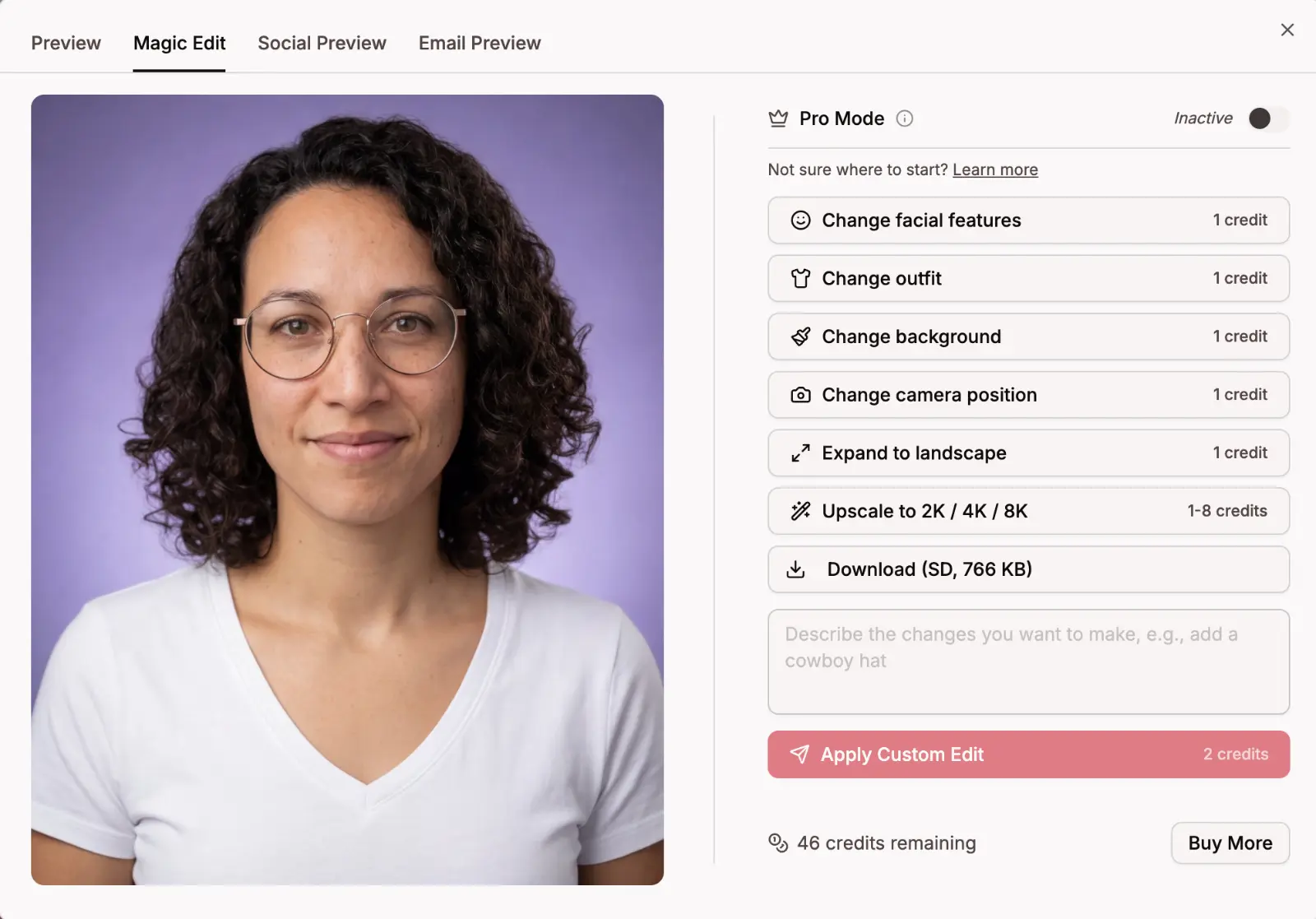
The Magic Editor lets you refine any headshot using AI. Available edits include:
- Change background or outfit
- Adjust facial features
- Change camera position
- Expand to landscape format
- Custom prompt for full creative control
Each edit uses credits from your plan's included balance. See the Magic Editor Guide for full details and credit costs.
Social Preview
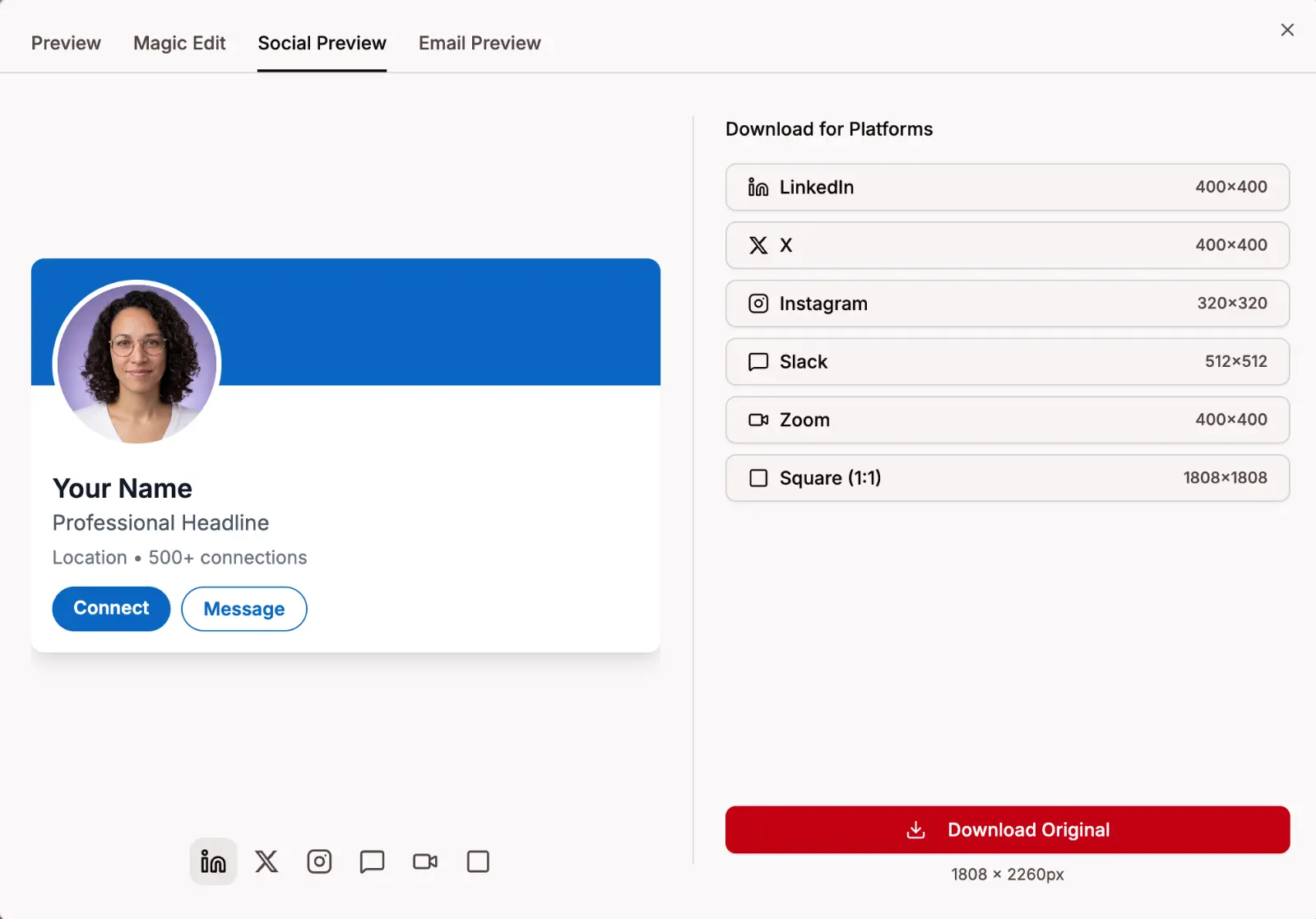
See how your headshot looks on real social media profiles before downloading. The left side shows a live mockup of your photo on each platform — LinkedIn, X, Instagram, Slack, and Zoom — so you can check how it fits. On the right, download the image pre-cropped to the correct dimensions for any platform. No manual resizing needed.
Sharing
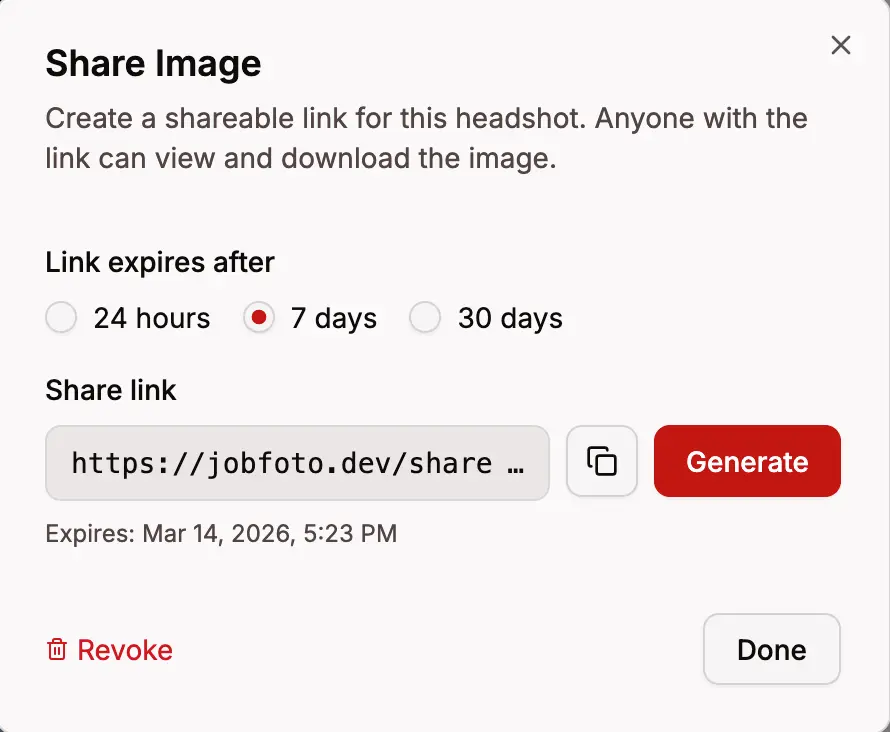
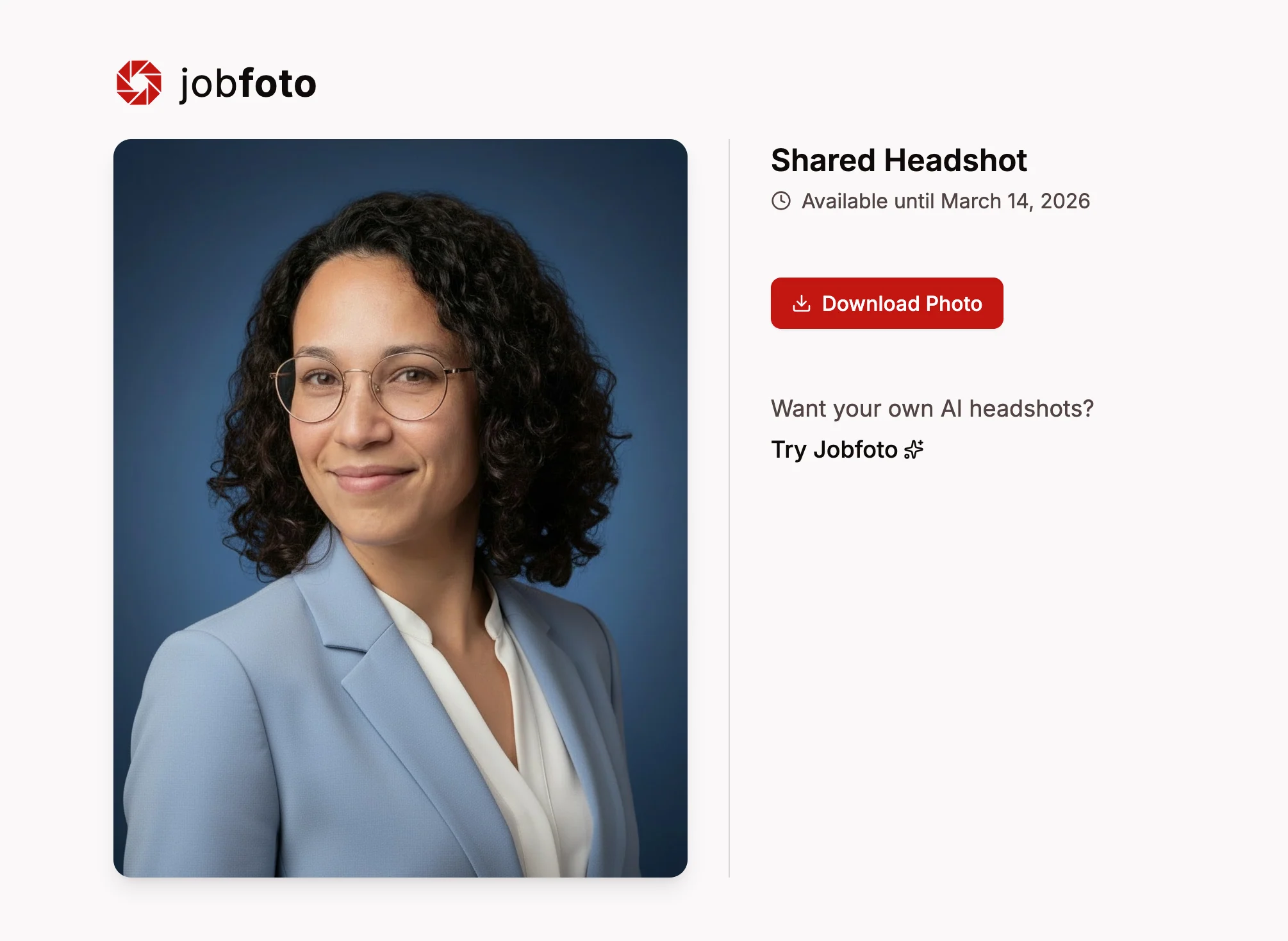
Want to show someone a headshot? Open the preview and click the share button to generate a temporary link. Choose how long the link stays active — 24 hours, 7 days, or 30 days. Anyone with the link can view and download the image without needing an account. You can revoke the link at any time.
Downloading
Download a single headshot or grab everything as a zip of favorites. See the Downloading Your Headshots guide for the full walkthrough on desktop, iPhone, and Android.