

Downloading your headshots
How to save your headshots to your device – step by step on desktop, iPhone, and Android
 Written by Loris Siegenthaler · Founder
Once your headshots are generated, you can download them to your device and use them anywhere – LinkedIn, your resume, company website, business cards, or wherever you need a professional photo.
Two ways to download
You can save headshots one at a time or download everything as a single zip file:
- Single image – open a headshot in the preview and tap the download button. Ideal when you only need one or two.
- Favorites as zip – mark headshots with the star and then download all favorites bundled as a zip file. Ideal for saving everything before your profile expires.
The exact steps differ by device. Jump to the section that applies to you:
On desktop (Mac, Windows, Linux)
It's easiest on desktop – downloads go to your Downloads folder and zip files are straightforward to extract.
Single image
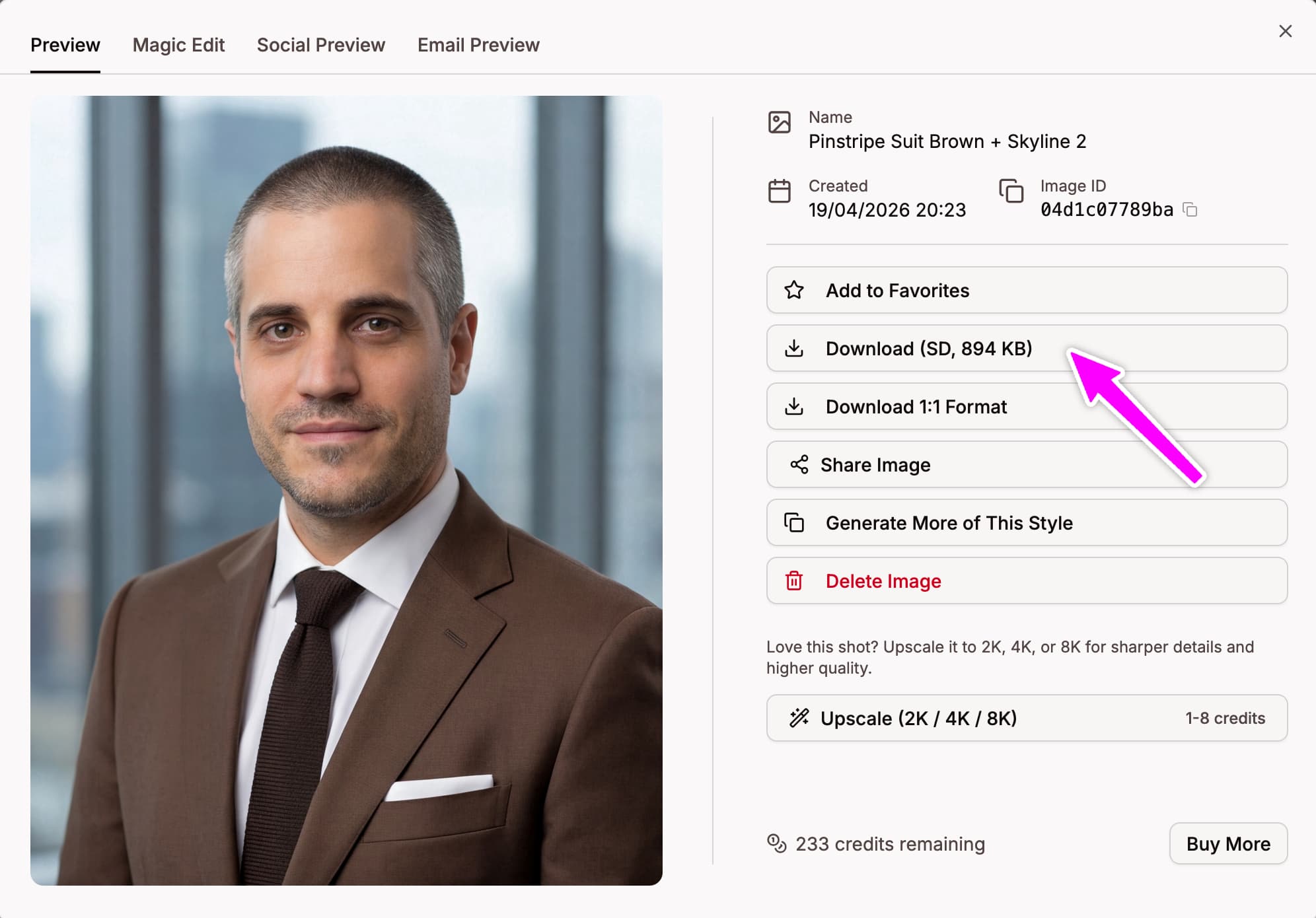
- Click a headshot to open the preview
- Click the download button in the toolbar
- The JPEG file is saved to your Downloads folder – open it from your browser's download bar or directly from the folder
Favorites as zip
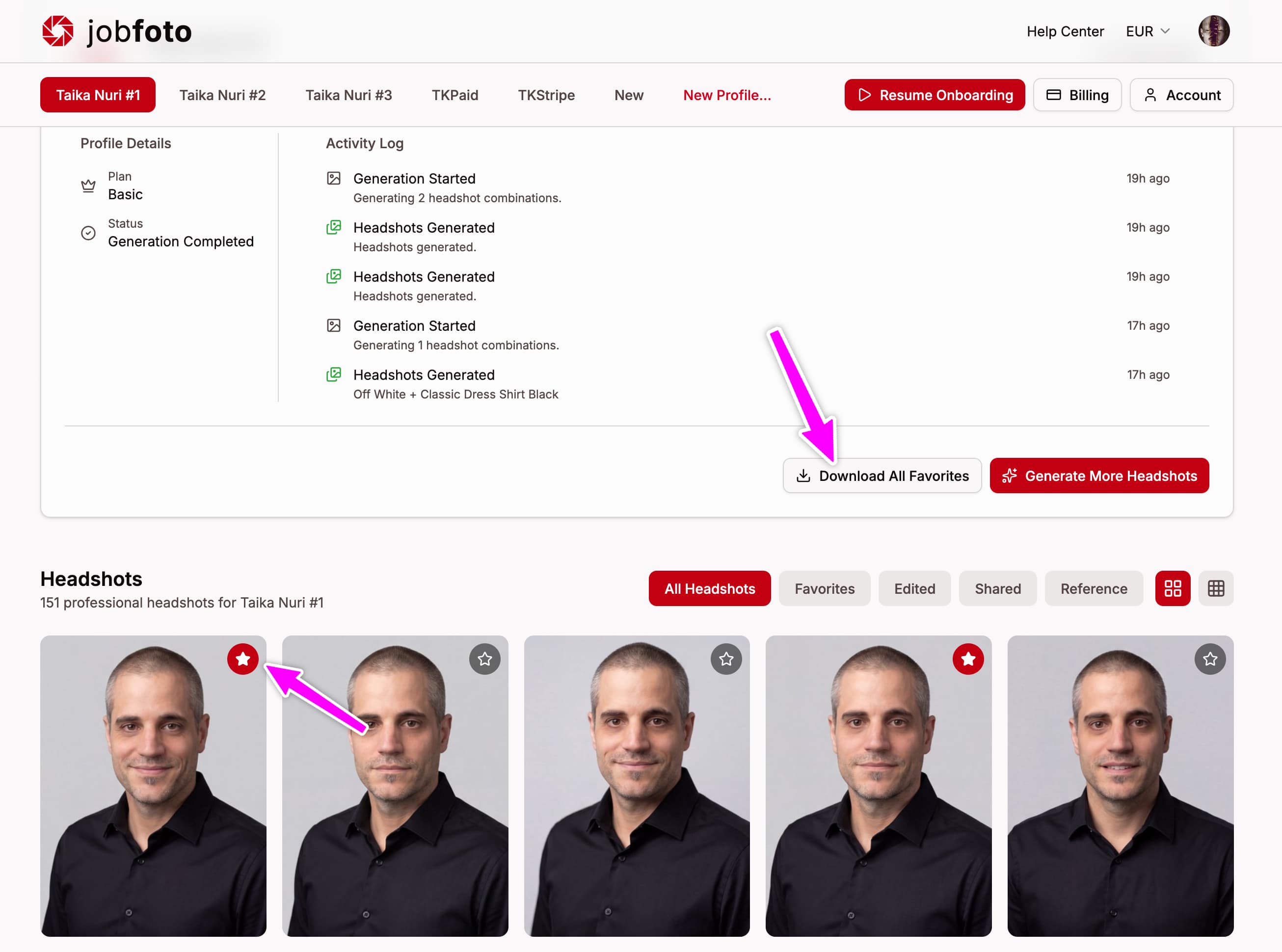
- Click the star on each headshot you want to keep
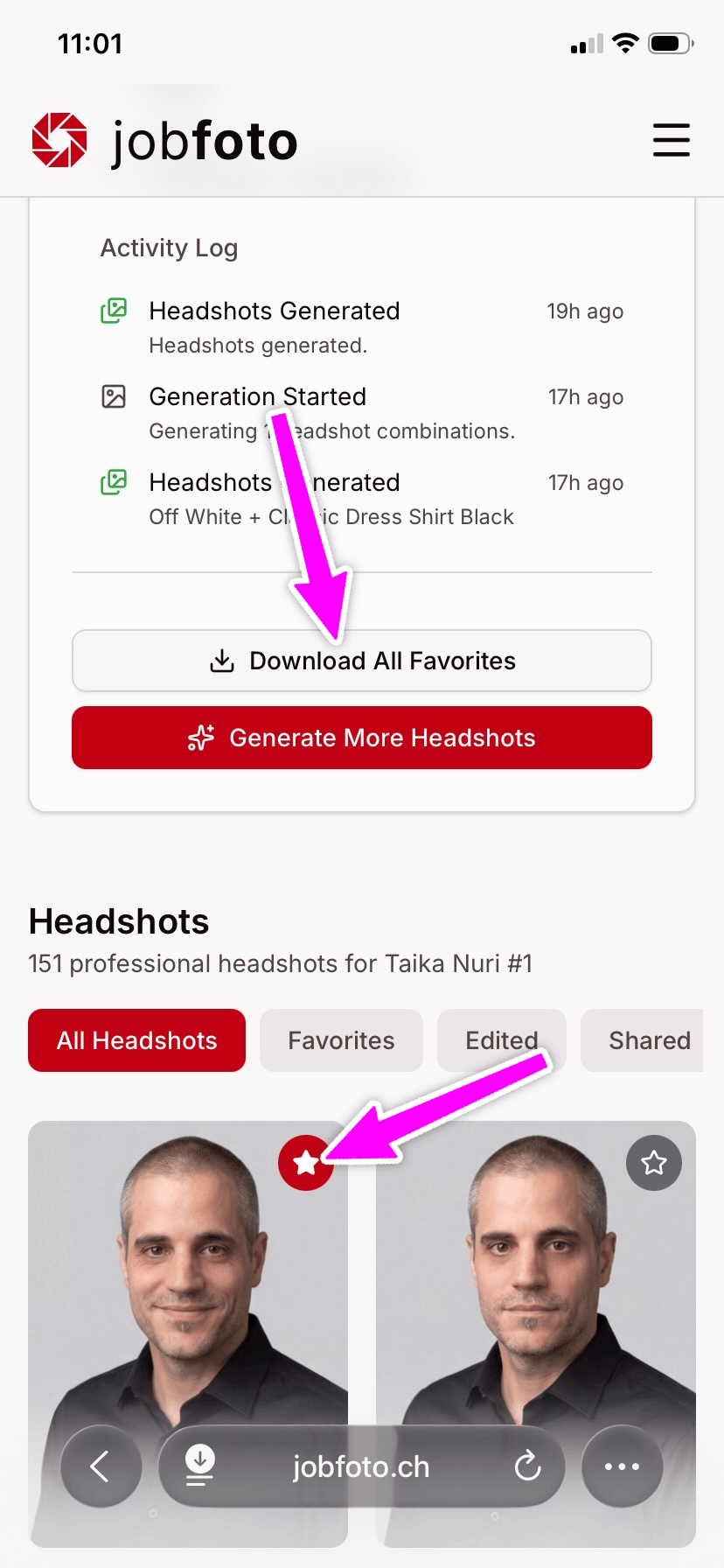
- Go to the profile overview and click Download all favorites
- Choose aspect ratio (Original, Square 1:1, or both) and date prefix in the filename (None, US, or ISO 8601), then click Download
- You'll find the zip file in your Downloads folder. On macOS, double-click to extract automatically; on Windows, right-click and choose Extract all; on Linux, double-click or use the Archive Manager
On iPhone or iPad
iOS manages downloads through Safari and the Files app. It takes a few extra taps, but the process is always the same.
Single image
The fastest way on iPhone is to save directly to the Photos app:
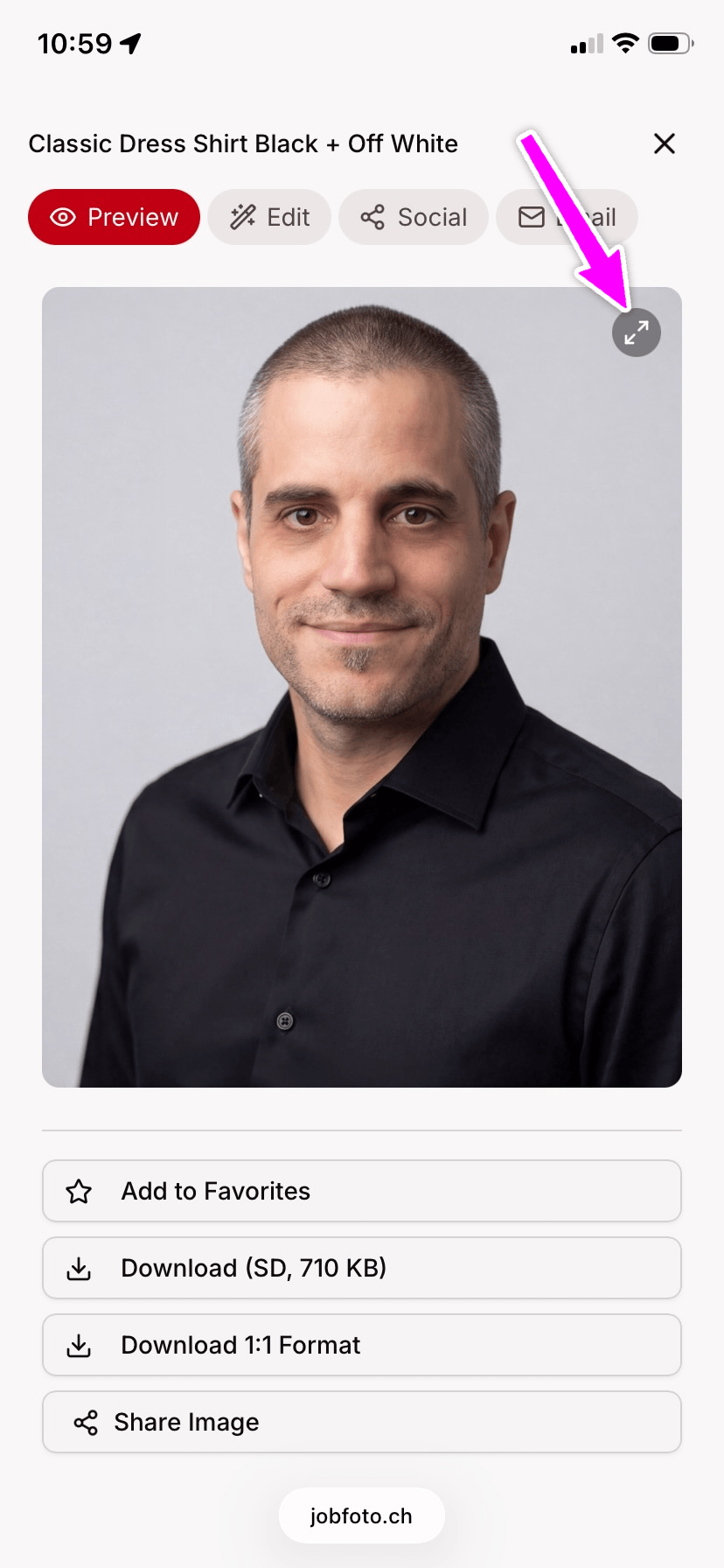
- Open the headshot in the preview
- Tap the expand button in the top right to open the image in full screen
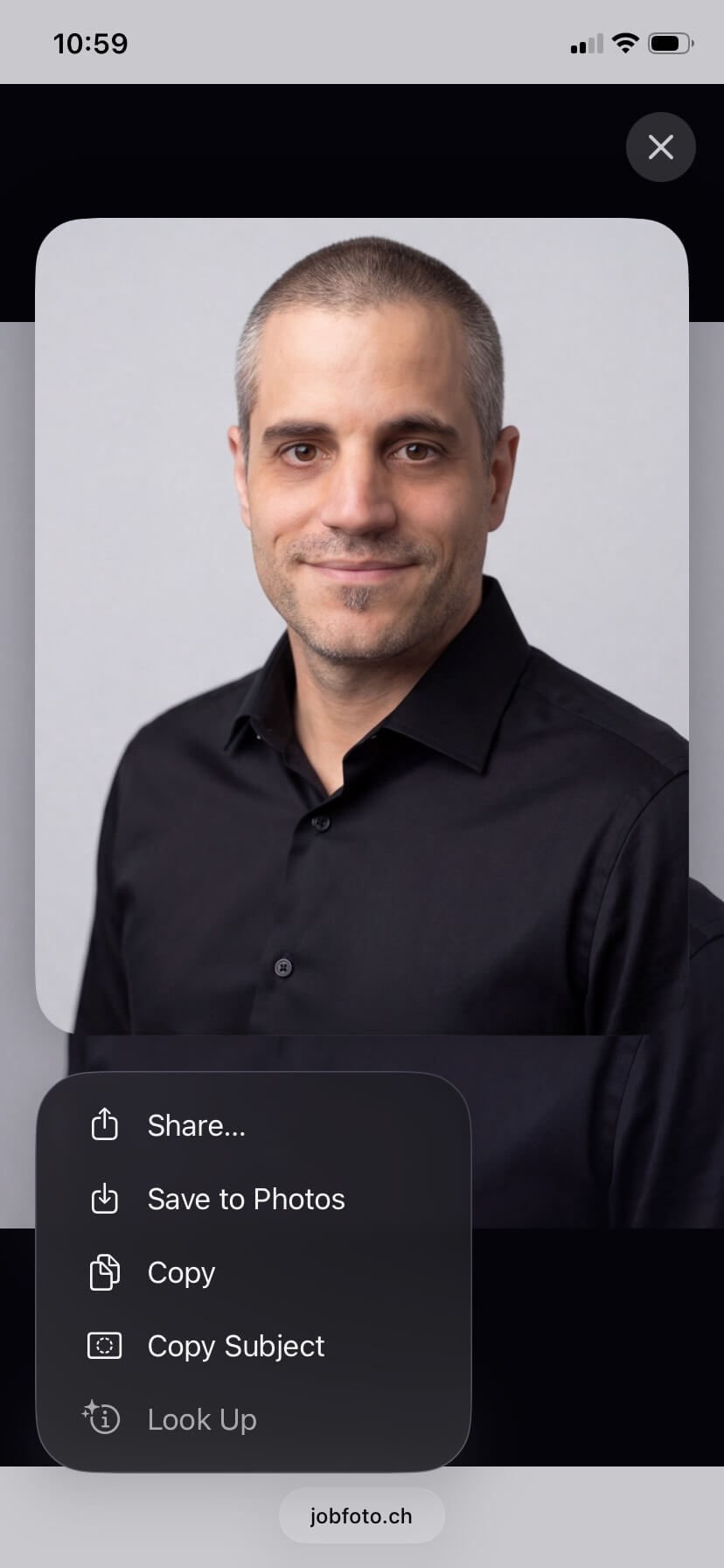
- Long-press the image and choose Save to Photos
- The headshot appears immediately in your Photos app
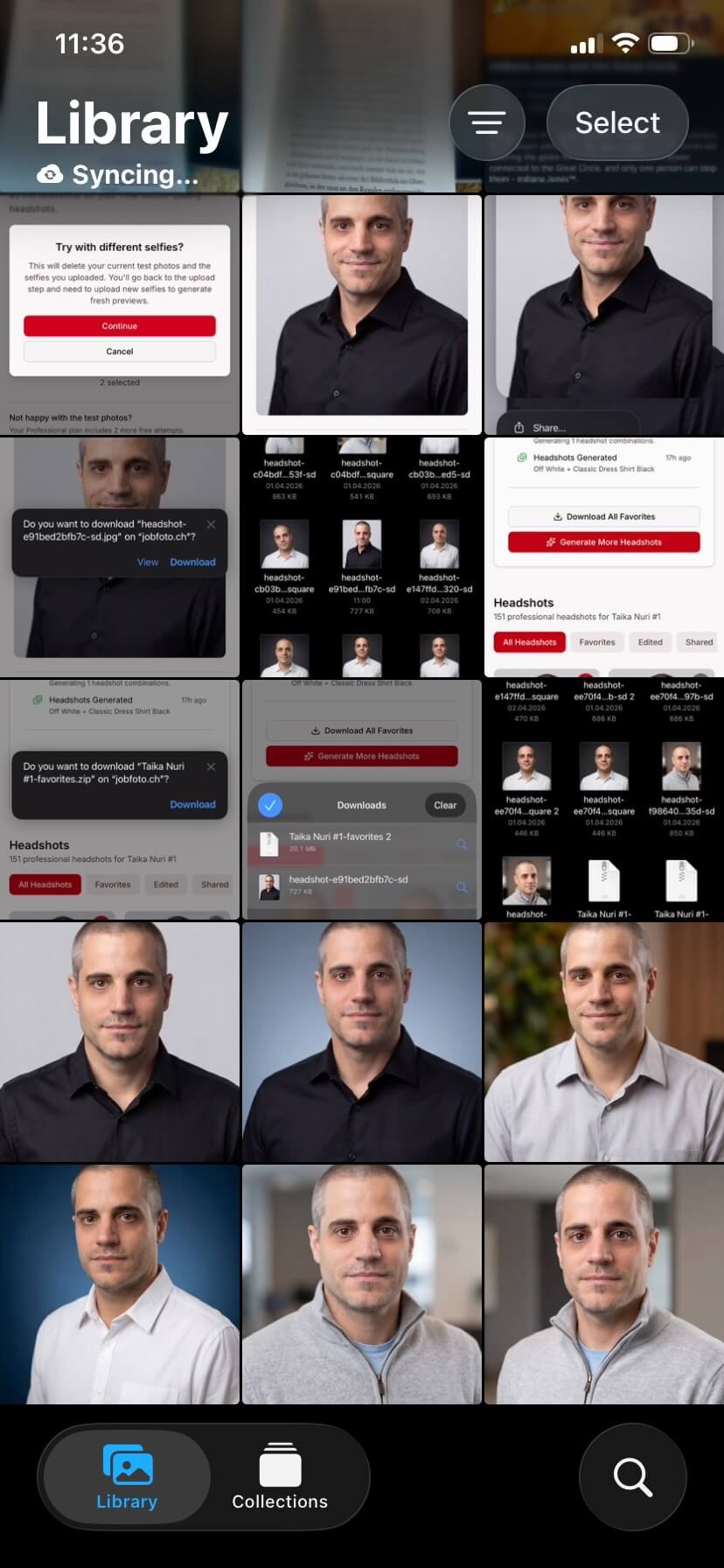
Or via the download button:
- Tap the download button in the preview
- Safari shows a confirmation – tap Download
- Tap the small arrow icon in the address bar, then tap the file to open it. To find it later, open the Files app and look under iCloud Drive › Downloads or On My iPhone › Downloads
Favorites as zip
- Tap the star on each headshot you want to keep
- Go to the profile overview and tap Download all favorites
- Choose aspect ratio (Original, Square 1:1, or both) and date prefix in the filename (None, US, or ISO 8601), then tap Download
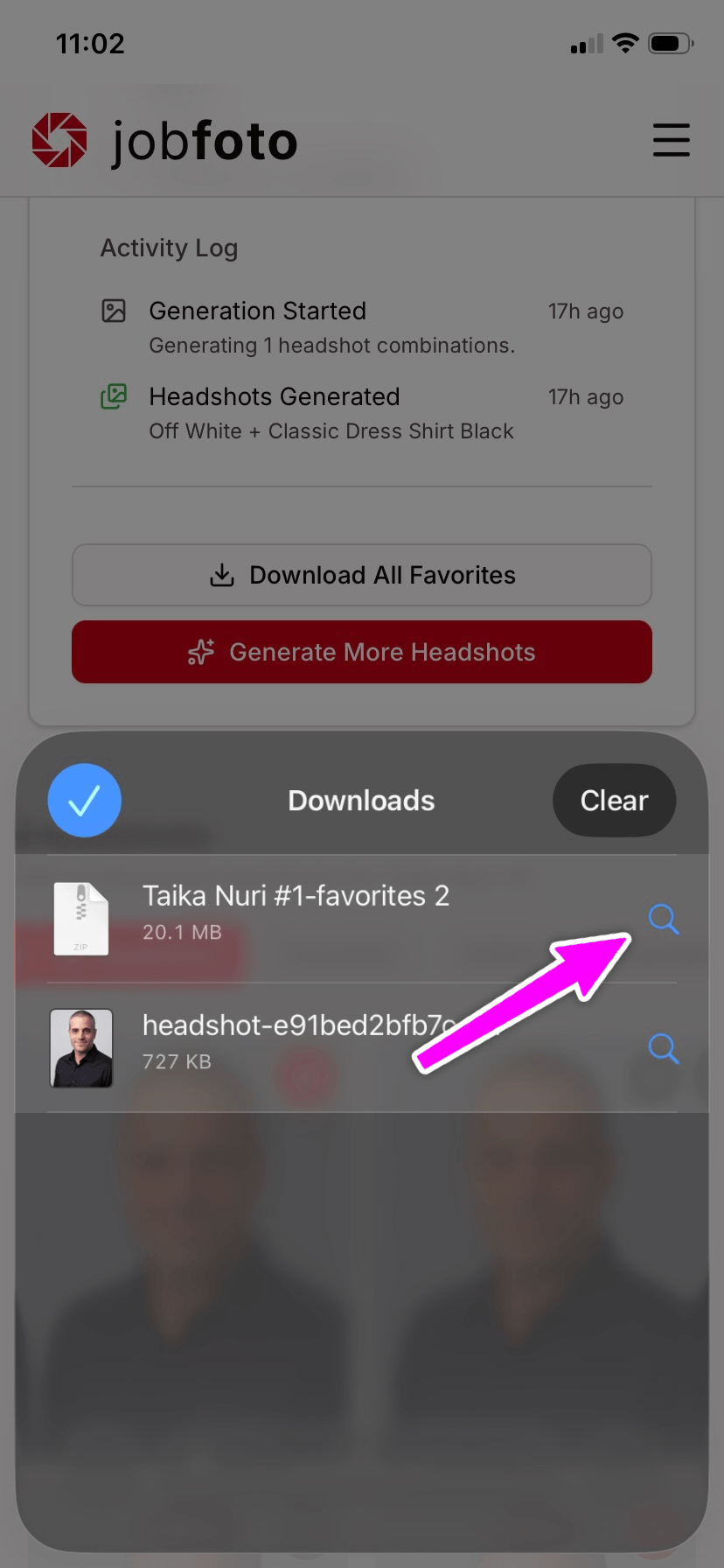
- Confirm Safari's download prompt
- Open the Files app, go to Downloads, and tap the zip file once – iOS extracts it into a folder right next to it
- Open the new folder. Long-press individual photos to save them to the Photos app, or share them directly from there

On Android
On Android, the process works similarly on most devices. The screenshots below show Chrome and Files by Google – in Samsung Internet and Firefox, the process is nearly identical.
Single image
The fastest way on Android is to save directly to Google Photos:
- Open the headshot in the preview
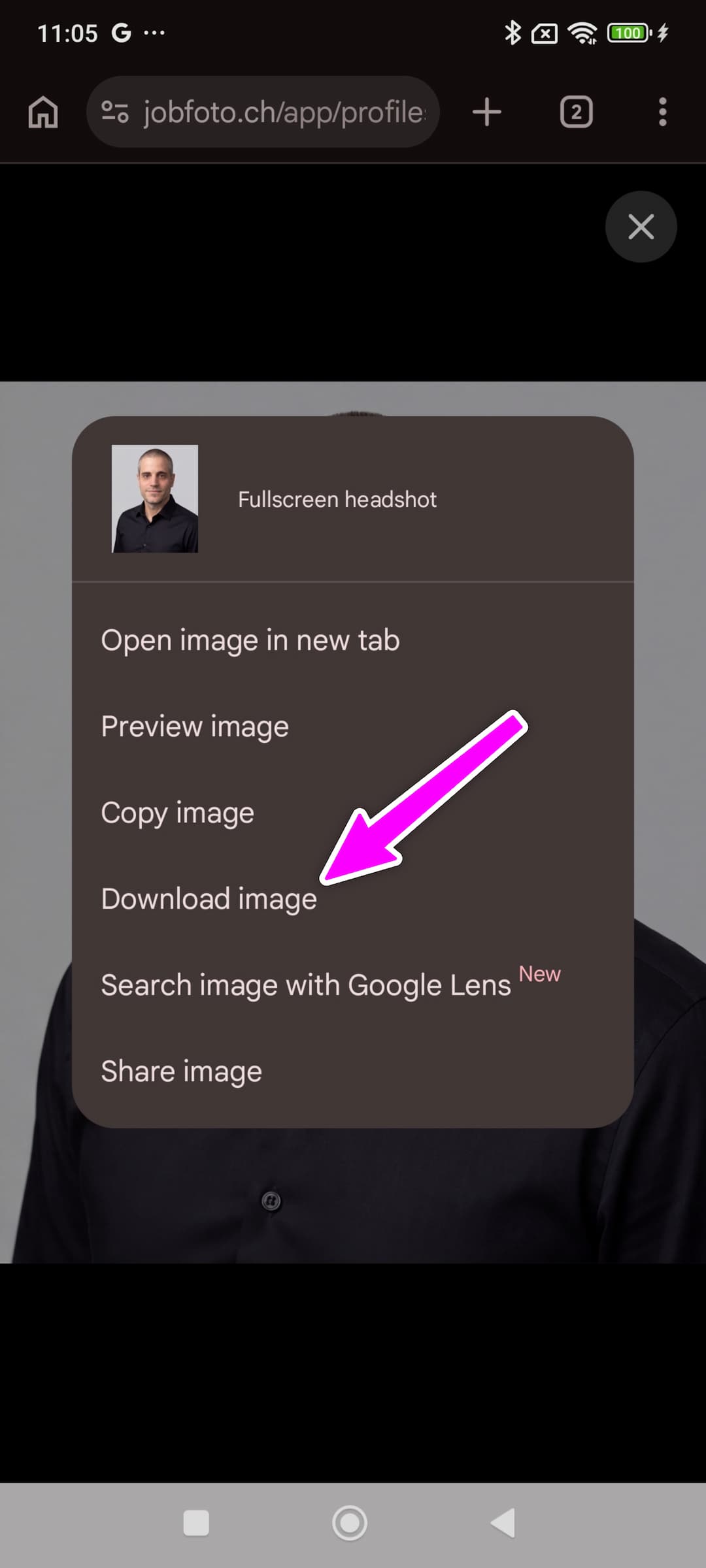
- Tap the expand button in the top right to open the image in full screen
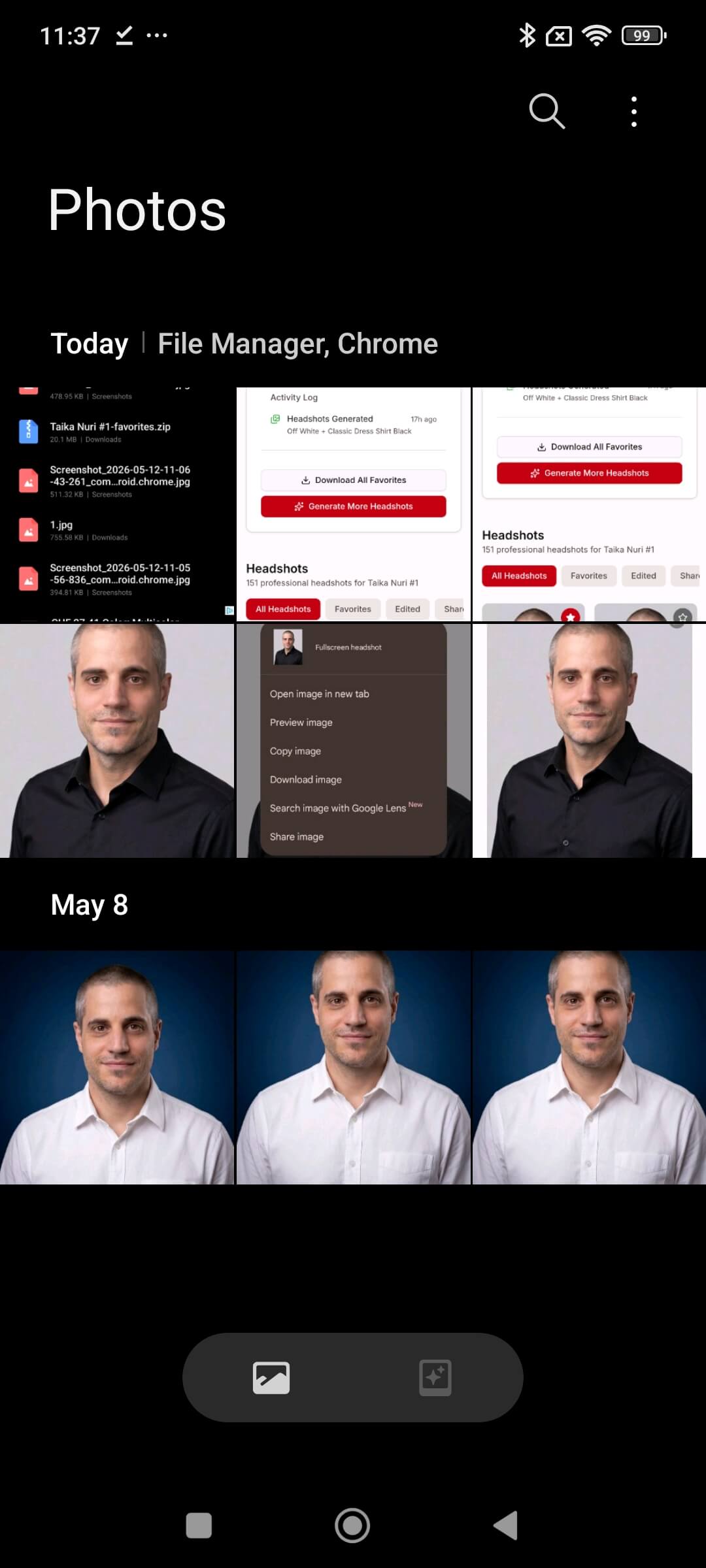
- Long-press the image and choose Download image or Save image
- The headshot lands in your Downloads folder and appears automatically in Google Photos
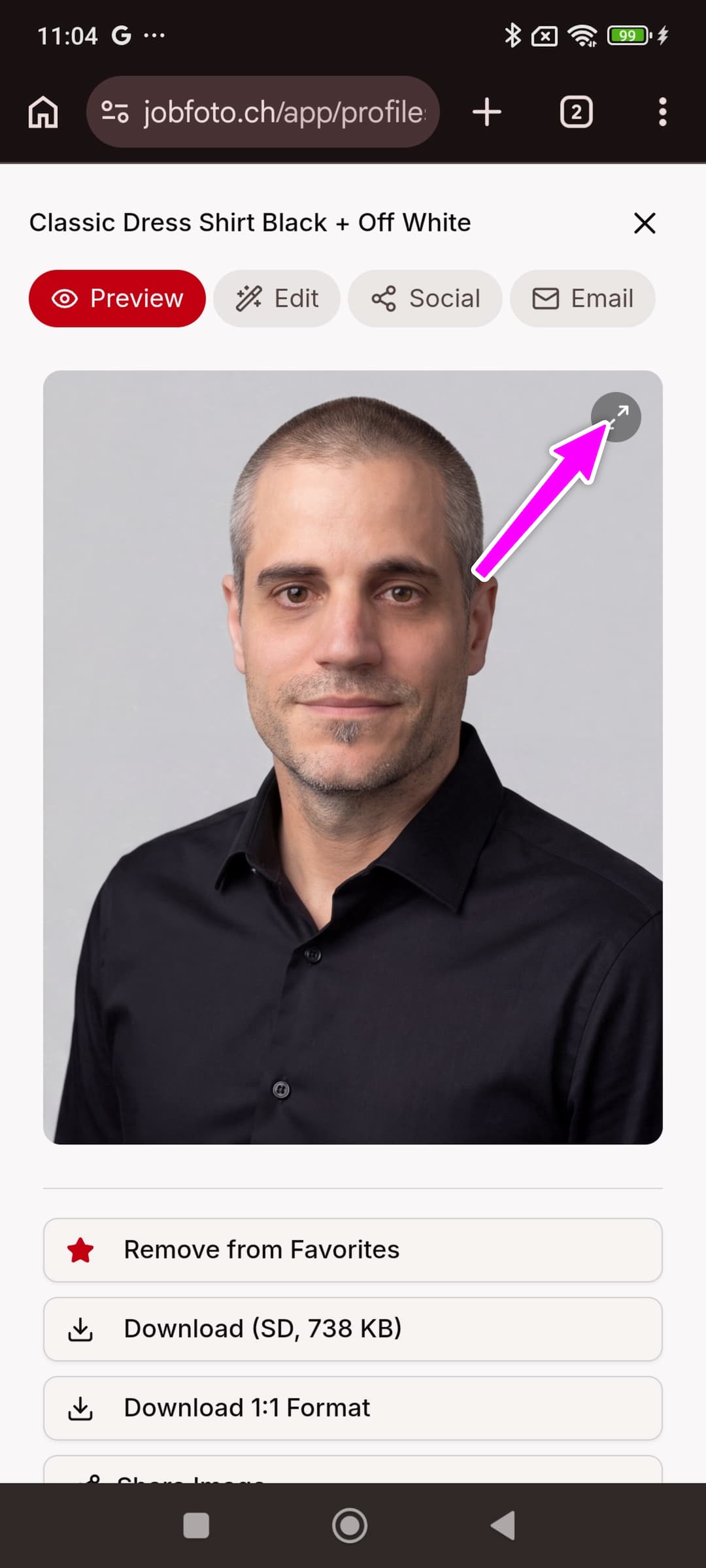
Or via the download button:
- Tap the download button in the preview
- Chrome shows a download notification at the bottom – tap it to open the file
- To find it later, open the Files app (or Files by Google) and go to Downloads
Favorites as zip
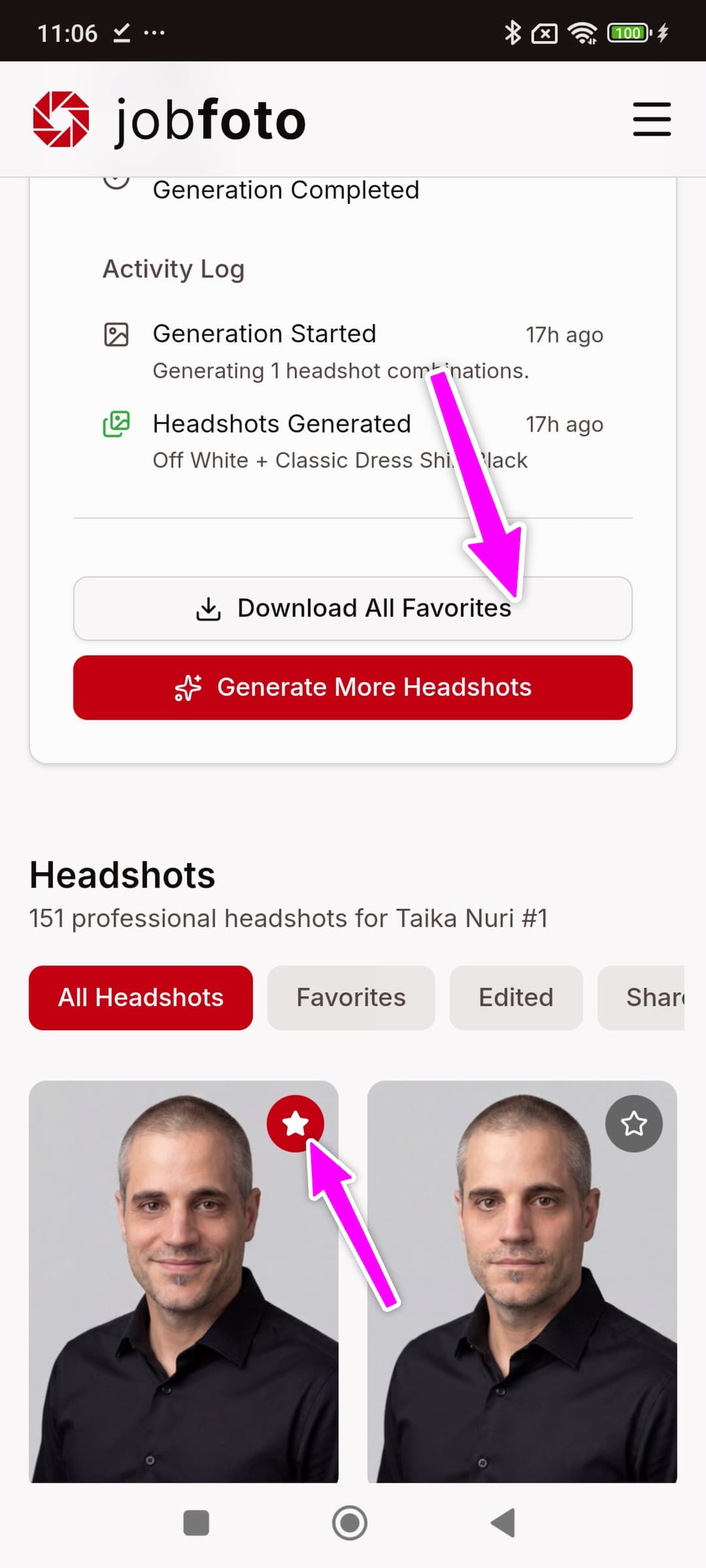
- Tap the star on each headshot you want to keep
- Go to the profile overview and tap Download all favorites
- Choose aspect ratio (Original, Square 1:1, or both) and date prefix in the filename (None, US, or ISO 8601), then tap Download
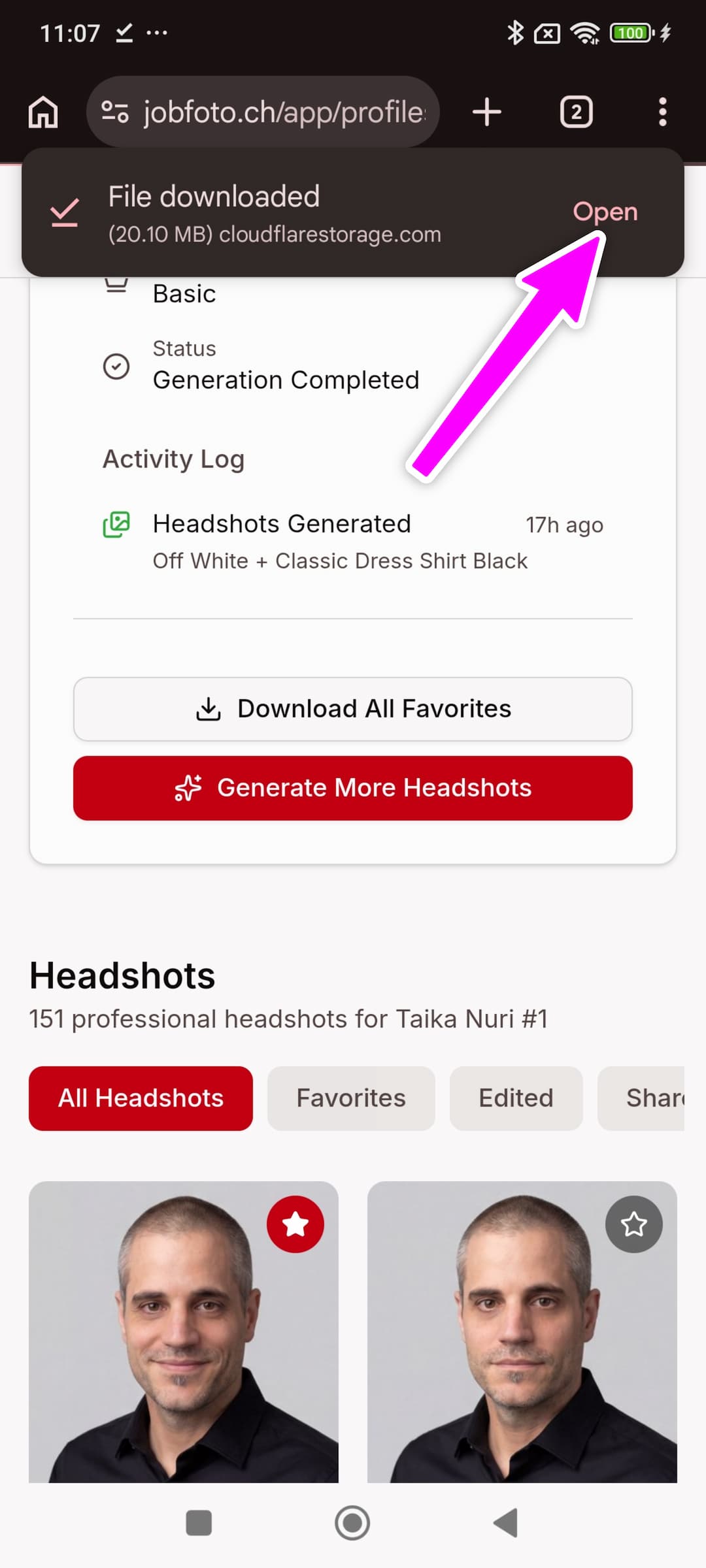
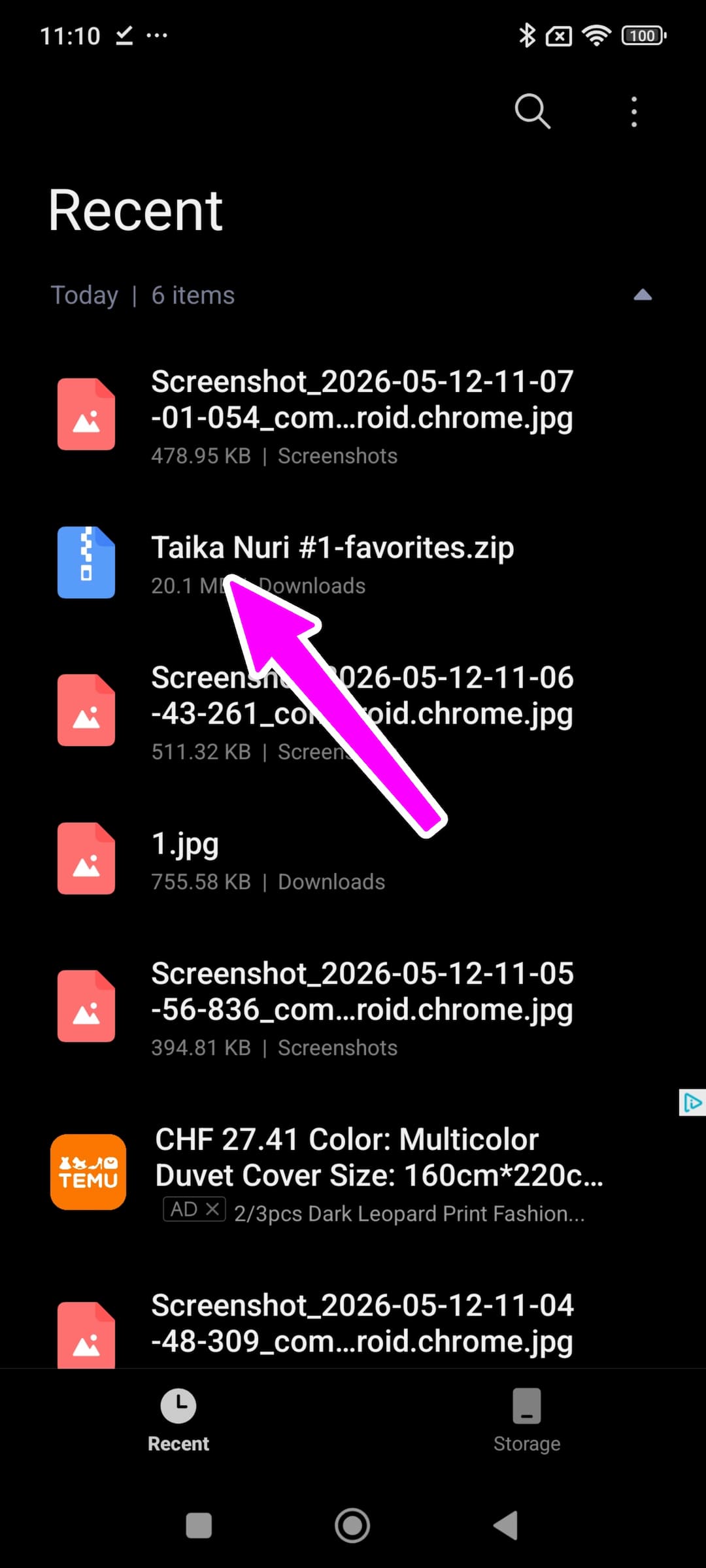
- Wait for Chrome's download notification and tap it – or find the zip file under Files › Downloads
- Tap the zip file and choose Extract. The photos appear in a new folder and are automatically detected by Google Photos
Tips
- Download on desktop when possible – it's easier to use and zip files are simpler to extract
- On mobile, save to Photos / Google Photos so you can find the images quickly later, without searching through the Files app
- Don't wait until your profile's expiry day – download the photos as soon as you've chosen your favorites
Stuck? Contact support – we'll help you save your headshots safely.