

Choosing Your Styles
How to browse and combine outfits and backgrounds for your headshots
 Written by Loris Siegenthaler · Founder
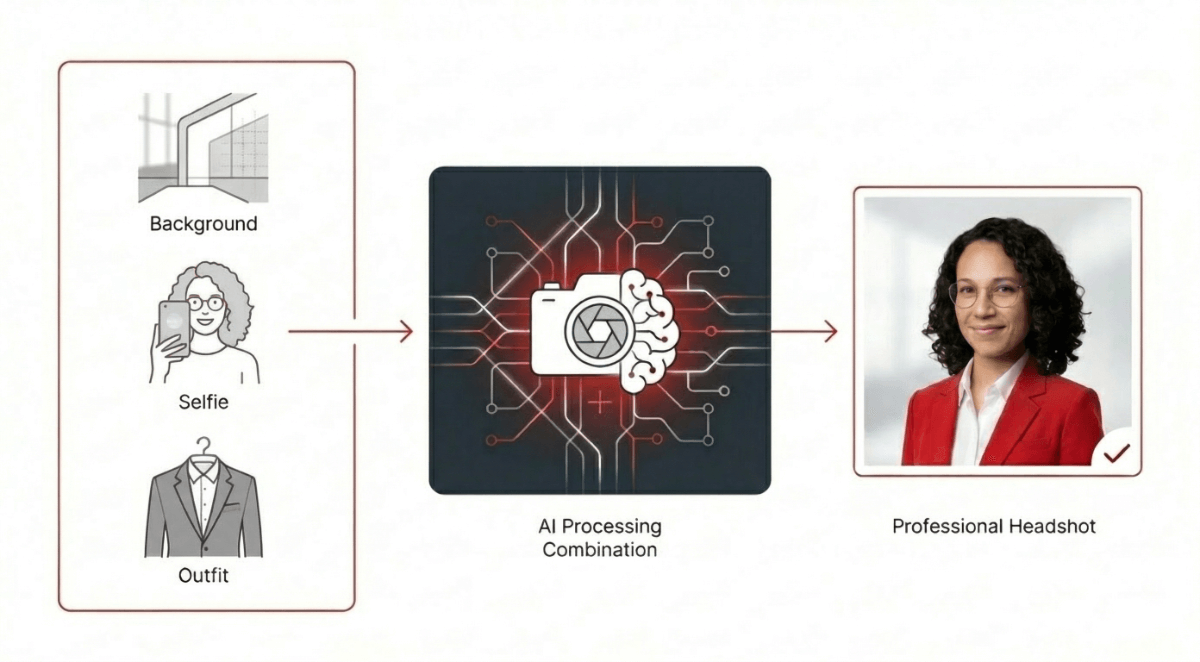
Style combinations determine how your headshots look. You pick a background and an outfit — each combination generates 12 unique headshots with different poses, expressions, and lighting.
How Combinations Work
Each combination pairs one background with one outfit. Your plan determines how many combinations you can create:
- Basic: 3 combinations (36 headshots)
- Professional: 5 combinations (60 headshots)
- Executive: 10 combinations (120 headshots)
During onboarding you create your first 3 combinations. With Professional or Executive plans, you can generate more headshots with additional combinations later.
Backgrounds
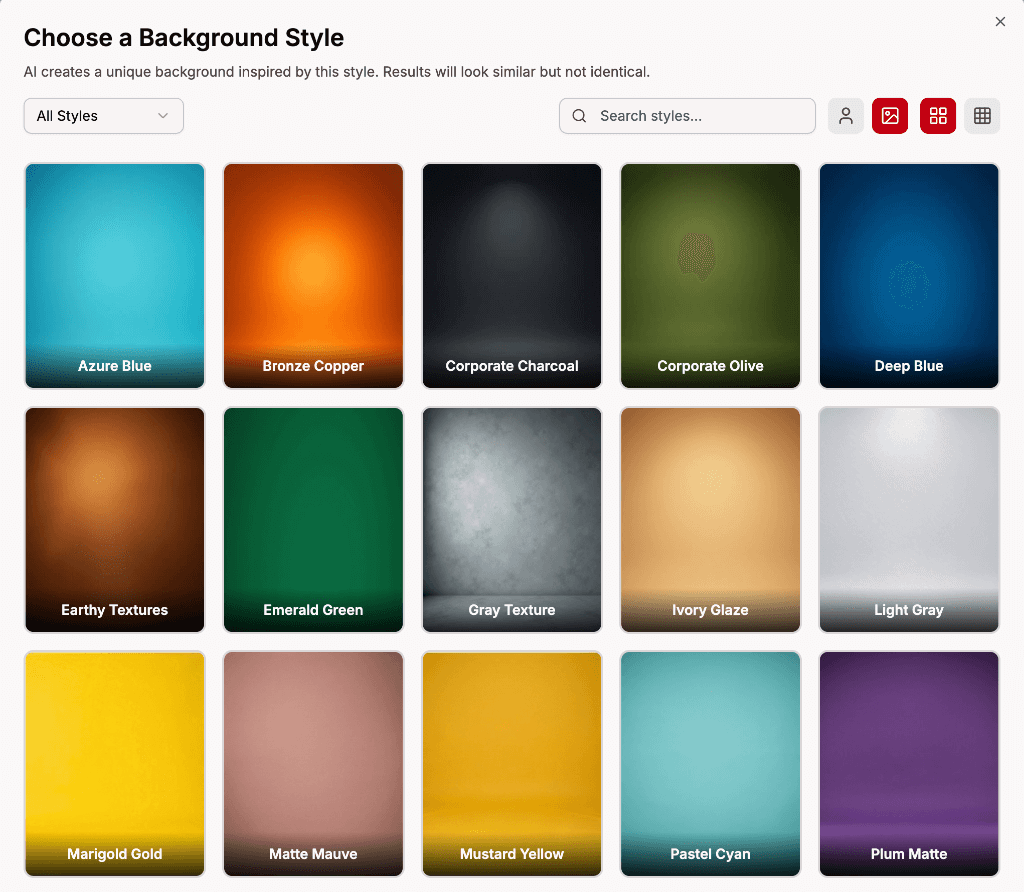
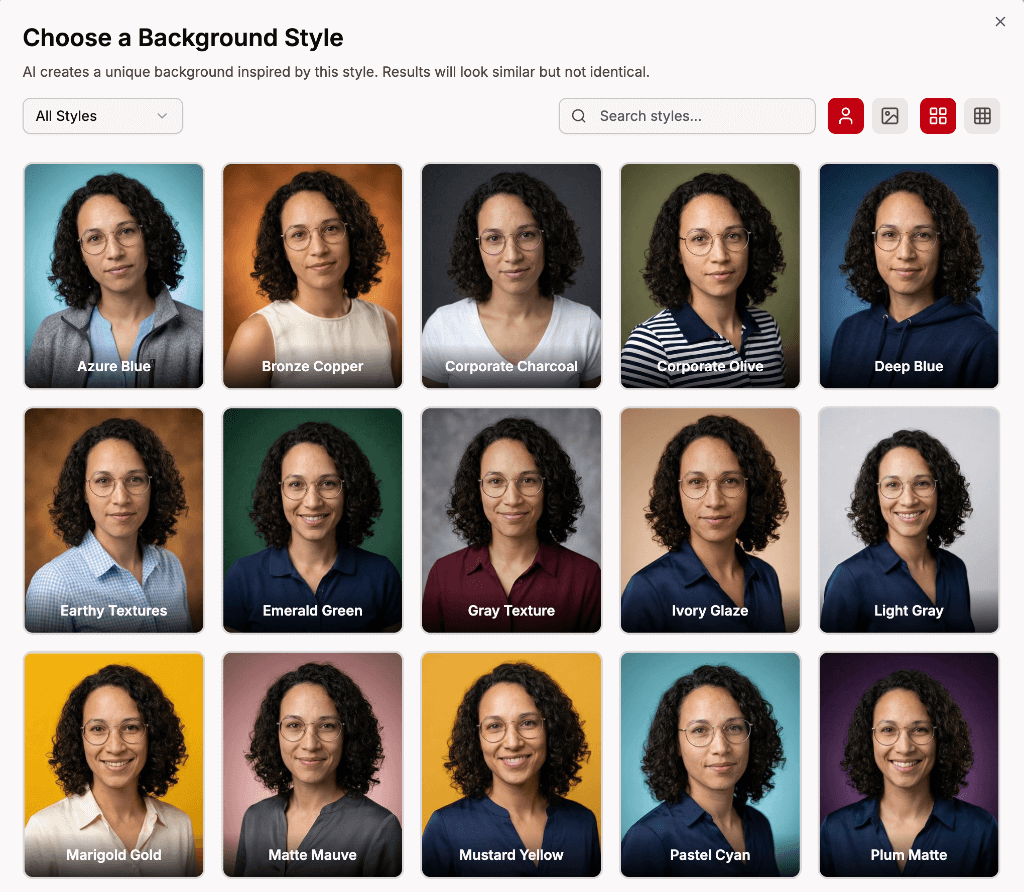
Backgrounds set the scene for your headshot. Browse by group:
- Studio — clean, simple backdrops
- Corporate — office and business environments
- Urban — city and street settings
- Nature — outdoor and green environments
- Architectural — buildings and interior spaces
- Residential — home and casual settings
You can toggle between "With person" and "Empty background" previews to see how each background looks.
Outfits
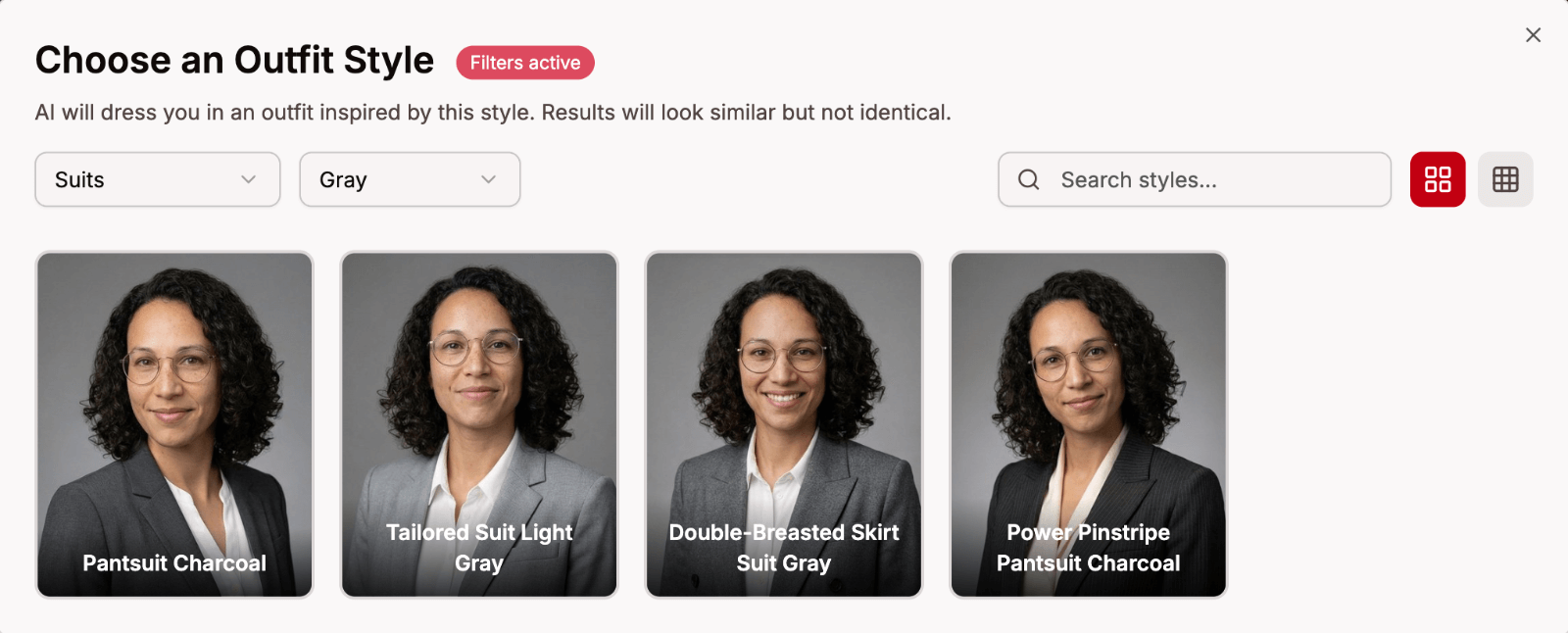
Outfits control the clothing in your headshot. Browse by group:
- Shirts, Polos, T-Shirts — casual and smart-casual options
- Sweaters, Blazers, Suits — formal and business attire
- Uniforms, Sports, Education — industry-specific looks
You can also filter outfits by color (black, white, navy, blue, etc.).
Filtering and Searching
The style browser includes several tools to find what you're looking for:
- Group filter — narrow by category (e.g., only Studio backgrounds)
- Color filter — for outfits, filter by color
- Search — type a name to find specific styles
- Grid density — switch between 4-column and 8-column views
Styles are automatically filtered by your gender for the best results.
Plan-Locked Styles
Some styles are only available on Professional or Executive plans. These show a lock icon. If you see a style you like that's locked, you can create a new profile with a higher-tier plan to access it.
Tips
- Mix formal and casual combinations to get variety
- Love a particular look? Add the same combination multiple times to get more variations of it
- Try different background types — a Studio background gives a different feel than a Nature one