

Pro Mode
What Pro Mode is, when to use it, and which edits benefit most from it
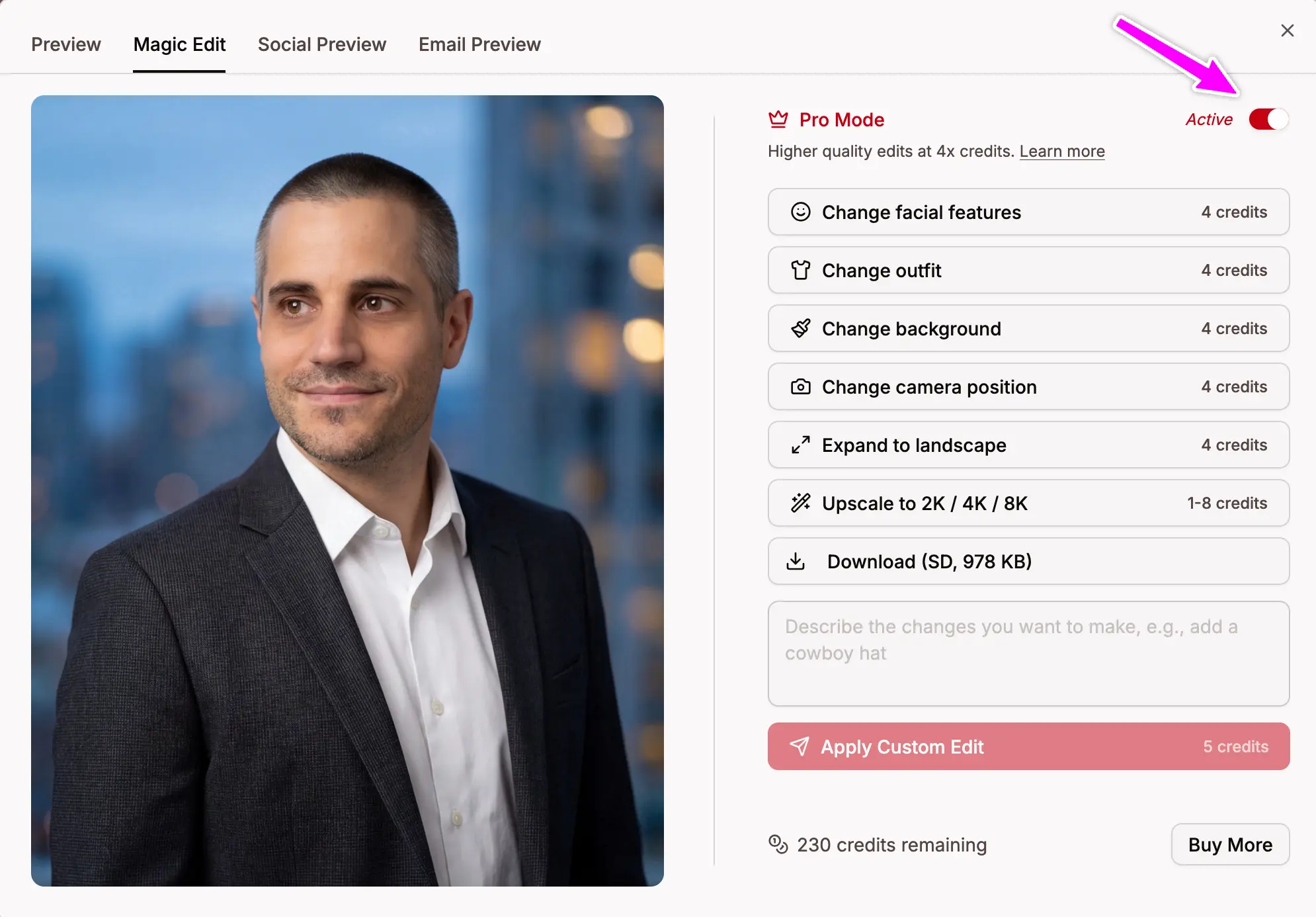
Pro Mode is an optional quality upgrade for Magic Editor edits. When enabled, edits run through a higher resolution pipeline and a more powerful AI model, producing sharper, more detailed, and more realistic results.
What Pro Mode Does
Pro Mode uses a higher resolution image pipeline and a more powerful AI model compared to standard mode. This means:
- More detail in faces, hair, and clothing textures
- Better lighting and color accuracy
- More realistic blending when changing backgrounds or outfits
- Better handling of complex edits like facial expression changes and perspective shifts
Cost
Pro Mode edits cost 4x the standard credit amount. For example, a background change costs 4 credits instead of 1. Custom prompts cost 5 credits instead of 2. Upscaling is not affected by Pro Mode.
Pro-Only Edits
Some edits are only available with Pro Mode enabled because they involve complex changes like facial expressions or perspective shifts that require the more powerful AI model to produce good results:
- Smile - add a natural, subtle smile
- Don't show teeth - close lips to hide teeth
- Thinner face - slim down thick or puffy faces
- Straighten head - correct head tilt or inclination
- Environmental camera - wider framing with more background context
- Over shoulder camera - over-the-shoulder perspective
What Works Well Without Pro Mode
Not every edit needs Pro Mode. These edits produce good results in standard mode:
- Change background - background swaps work well at standard quality
- Change outfit - clothing swaps look good in standard mode
- Clean shaven / Short beard / Full beard / Mustache - facial hair changes are straightforward
- Half body / Three-quarter camera - basic reframing works fine
- Expand to landscape - the AI-generated extension blends well at standard quality
Stacking Edits
Each edit re-encodes the image, so applying several edits in a row in standard mode can introduce graininess and slowly drift away from your original look. If you plan to apply more than one edit on top of an already-edited image, turn on Pro Mode for the follow-up edits — the higher-resolution pipeline preserves detail much better across stacked edits. The editor will also show a hint when you're about to edit an image that is itself the result of a previous edit.