

Bewerbungsfotos herunterladen
So werden die Bewerbungsfotos auf dem Gerät gespeichert – Schritt für Schritt am Desktop, auf dem iPhone und auf Android
 Geschrieben von Loris Siegenthaler · Gründer
Sobald die Bewerbungsfotos generiert sind, lassen sie sich auf das Gerät herunterladen und überall verwenden – LinkedIn, Lebenslauf, Firmenwebseite, Visitenkarten oder wo immer ein professionelles Foto gebraucht wird.
Zwei Wege zum Herunterladen
Bewerbungsfotos lassen sich einzeln speichern oder alles in einer einzigen Zip-Datei sichern:
- Einzelnes Bild – ein Bewerbungsfoto in der Vorschau öffnen und auf den Download-Button tippen. Ideal, wenn nur eines oder zwei gebraucht werden.
- Favoriten als Zip – Bewerbungsfotos mit dem Stern markieren und dann alle Favoriten gebündelt als Zip-Datei herunterladen. Ideal, um vor dem Ablauf des Profils alles zu sichern.
Die genauen Schritte unterscheiden sich je nach Gerät. Springen Sie zum passenden Abschnitt:
Am Desktop (Mac, Windows, Linux)
Am Desktop ist es am einfachsten – Downloads landen im Downloads-Ordner und Zip-Dateien lassen sich problemlos entpacken.
Einzelnes Bild
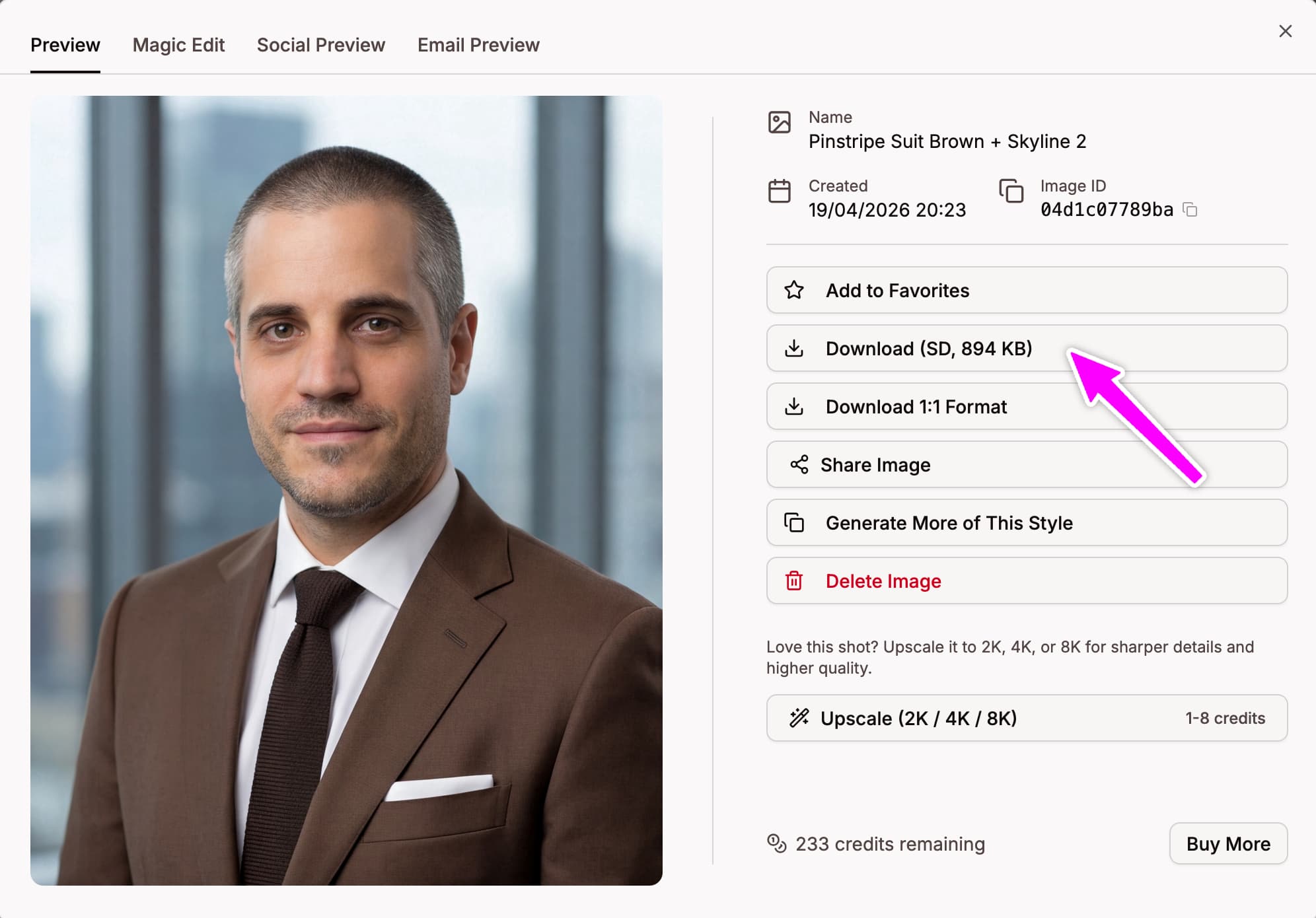
- Auf ein Bewerbungsfoto klicken, um die Vorschau zu öffnen
- Auf den Download-Button in der Werkzeugleiste klicken
- Die JPEG-Datei wird im Downloads-Ordner gespeichert – sie lässt sich aus der Download-Leiste des Browsers oder direkt aus dem Ordner öffnen
Favoriten als Zip
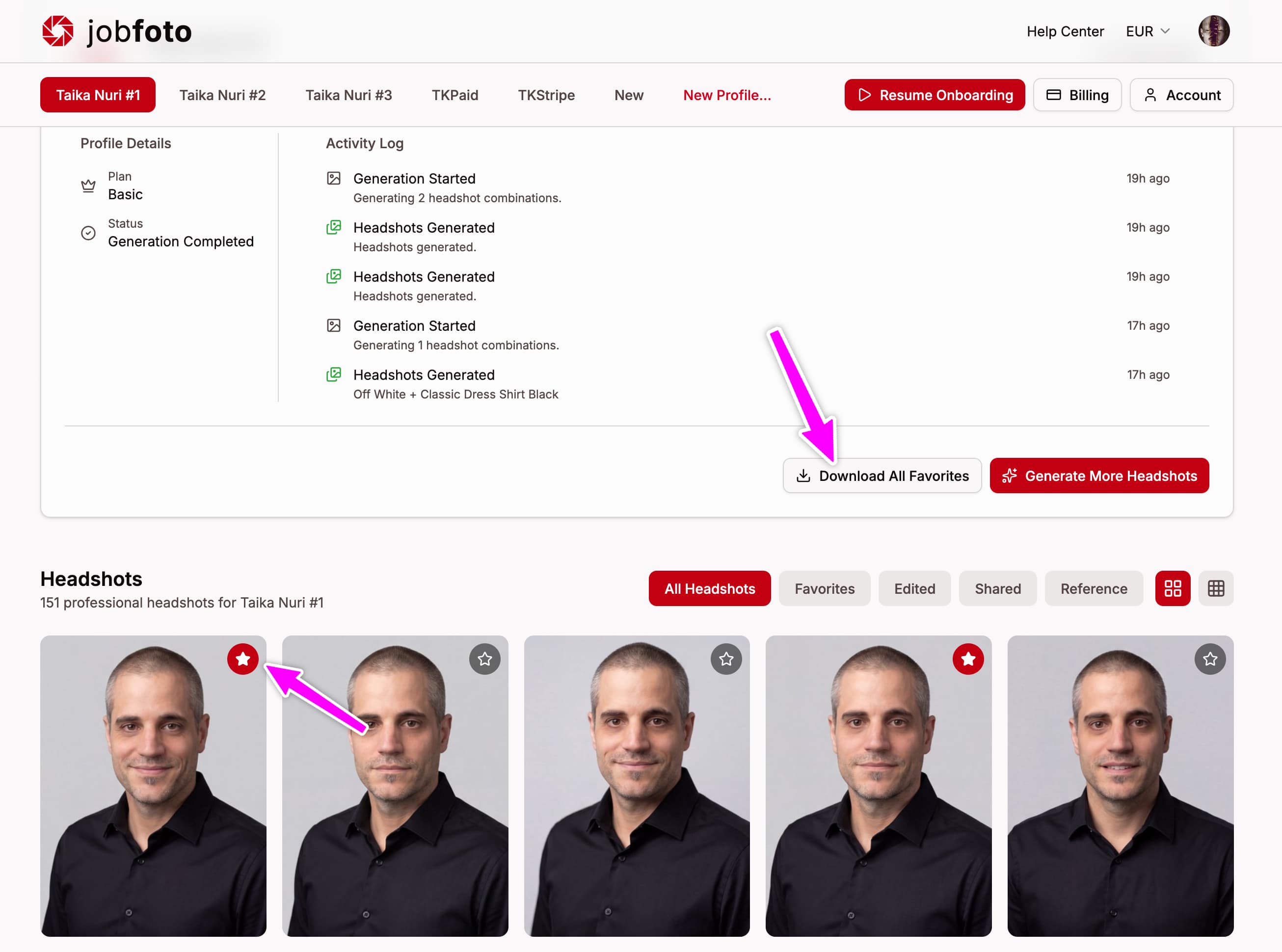
- Auf den Stern bei jedem Bewerbungsfoto klicken, das behalten werden soll
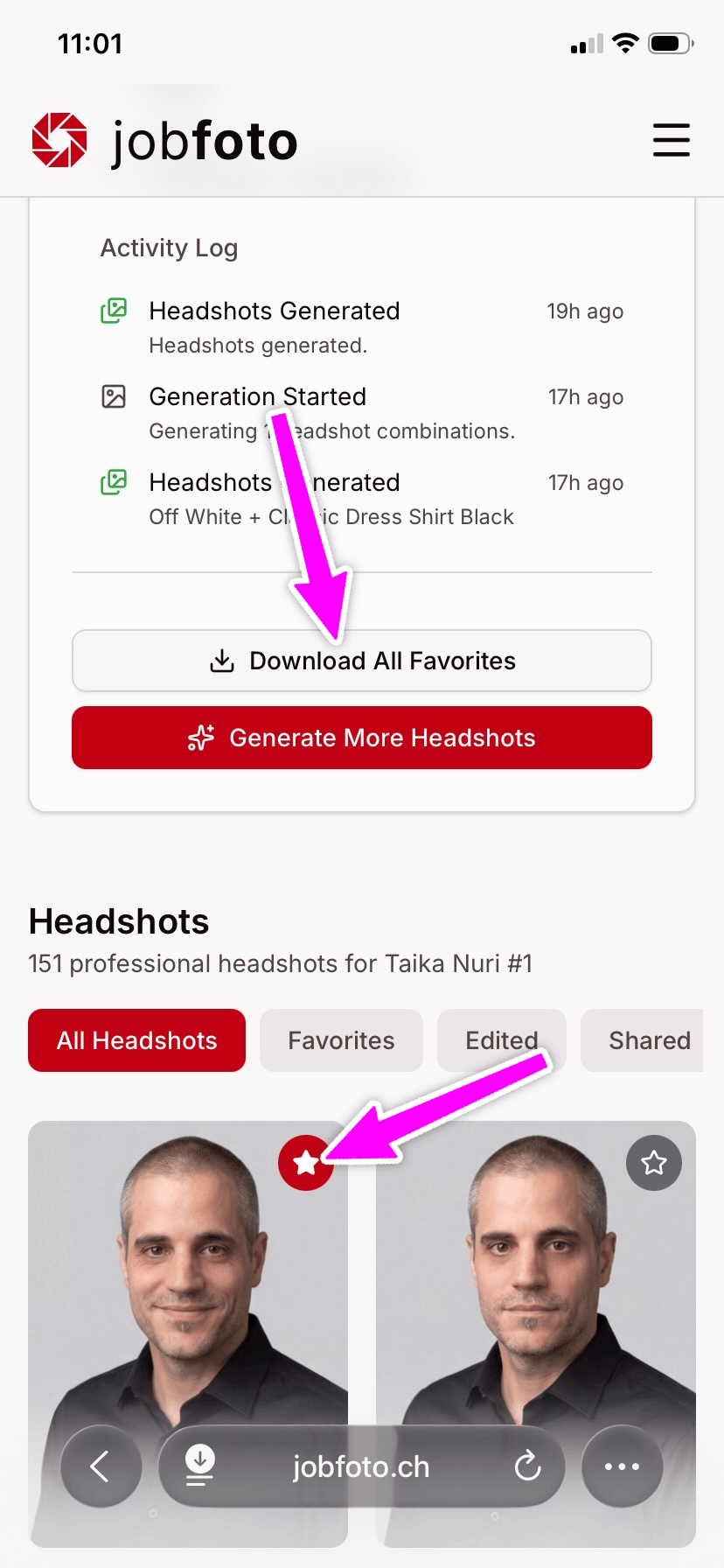
- Zur Profilübersicht gehen und auf Alle Favoriten herunterladen klicken
- Seitenverhältnis (Original, Quadrat 1:1 oder beides) und Datumspräfix im Dateinamen (Keins, US oder ISO 8601) wählen, dann auf Herunterladen klicken
- Die Zip-Datei liegt im Downloads-Ordner. Unter macOS doppelklicken zum automatischen Entpacken; unter Windows Rechtsklick und Alle extrahieren wählen; unter Linux doppelklicken oder den Archivmanager nutzen
Auf iPhone oder iPad
iOS verwaltet Downloads über Safari und die Dateien-App. Es braucht ein paar Mal mehr tippen, aber der Ablauf ist immer derselbe.
Einzelnes Bild
Am schnellsten geht es auf dem iPhone mit dem direkten Speichern in die Fotos-App:
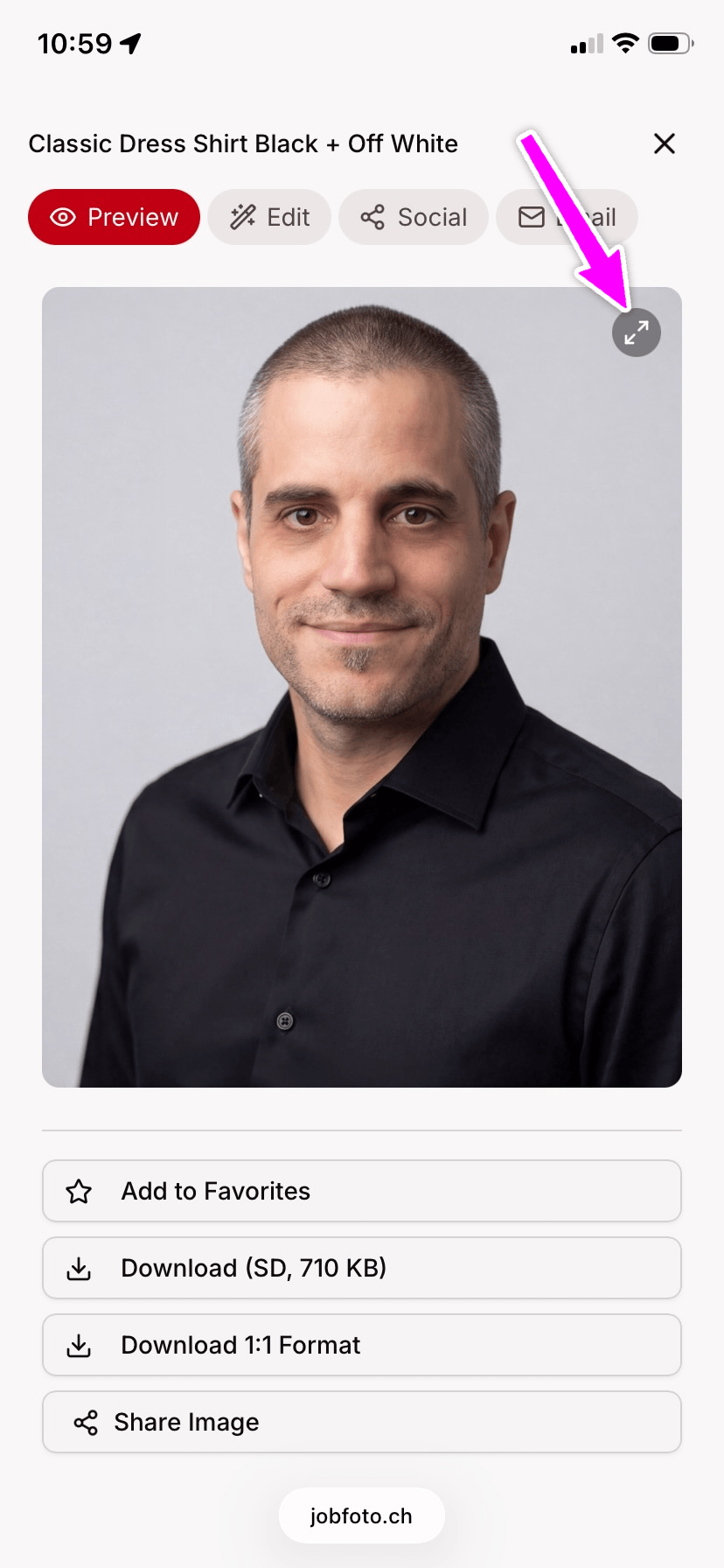
- Das Bewerbungsfoto in der Vorschau öffnen
- Oben rechts auf den Vergrössern-Button tippen, um das Bild im Vollbild zu öffnen
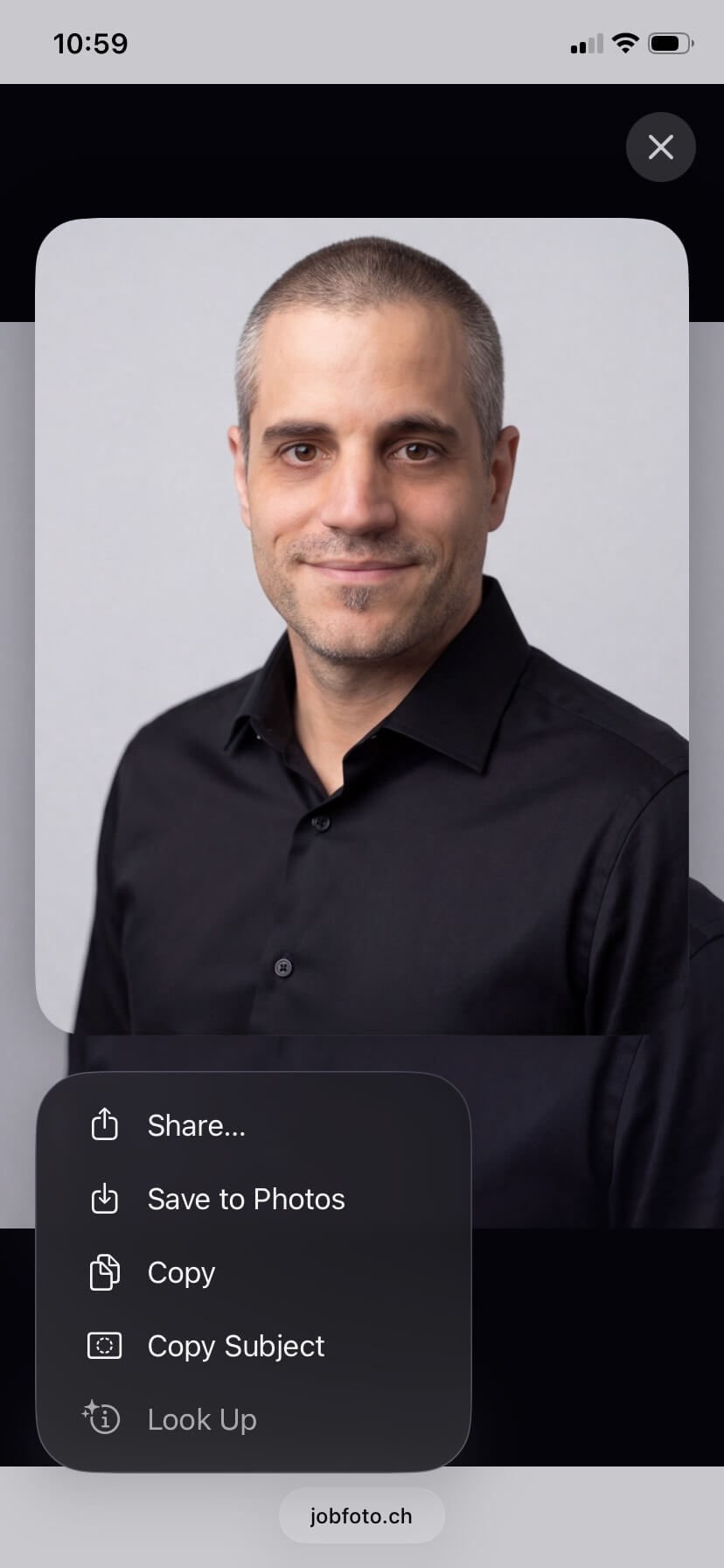
- Das Bild lange gedrückt halten und In Fotos sichern wählen
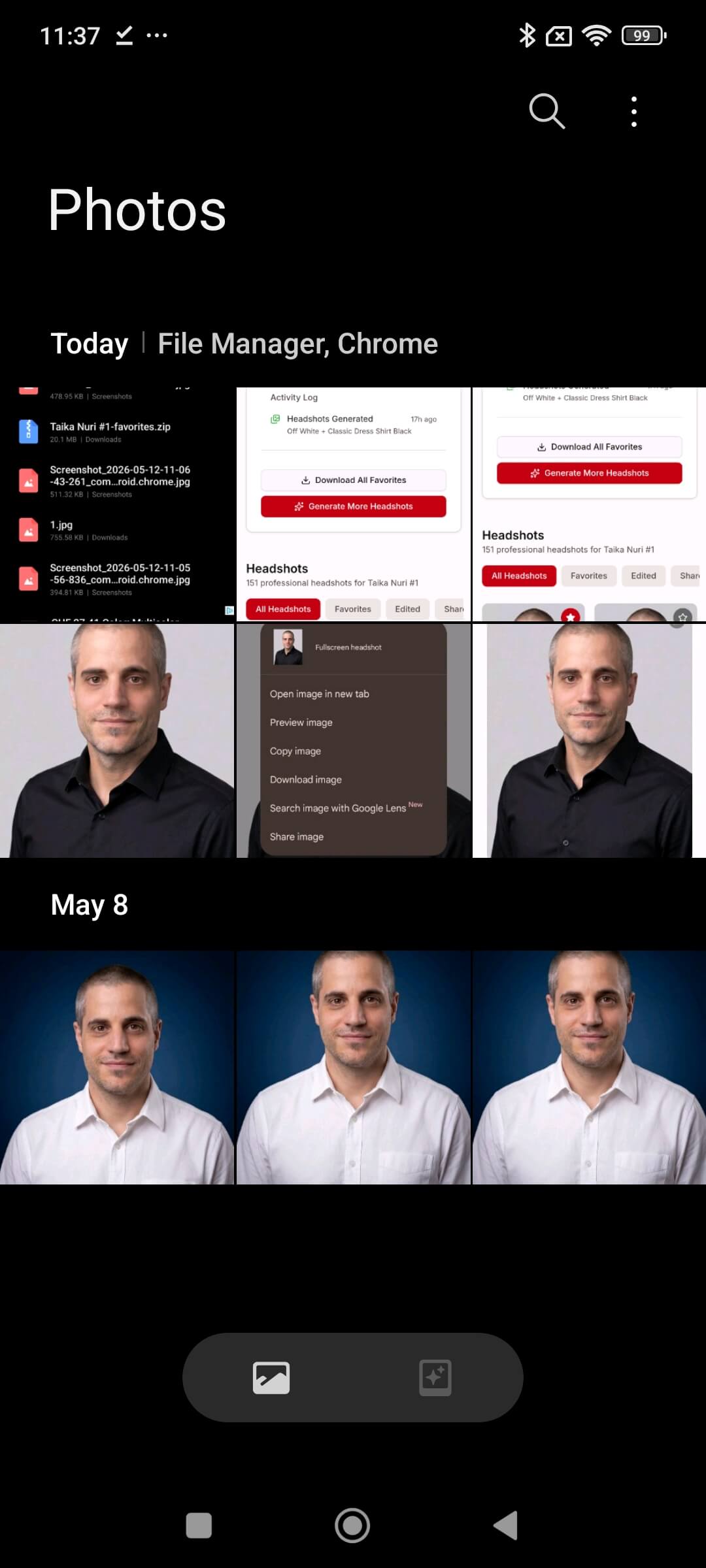
- Das Bewerbungsfoto erscheint sofort in der Fotos-App
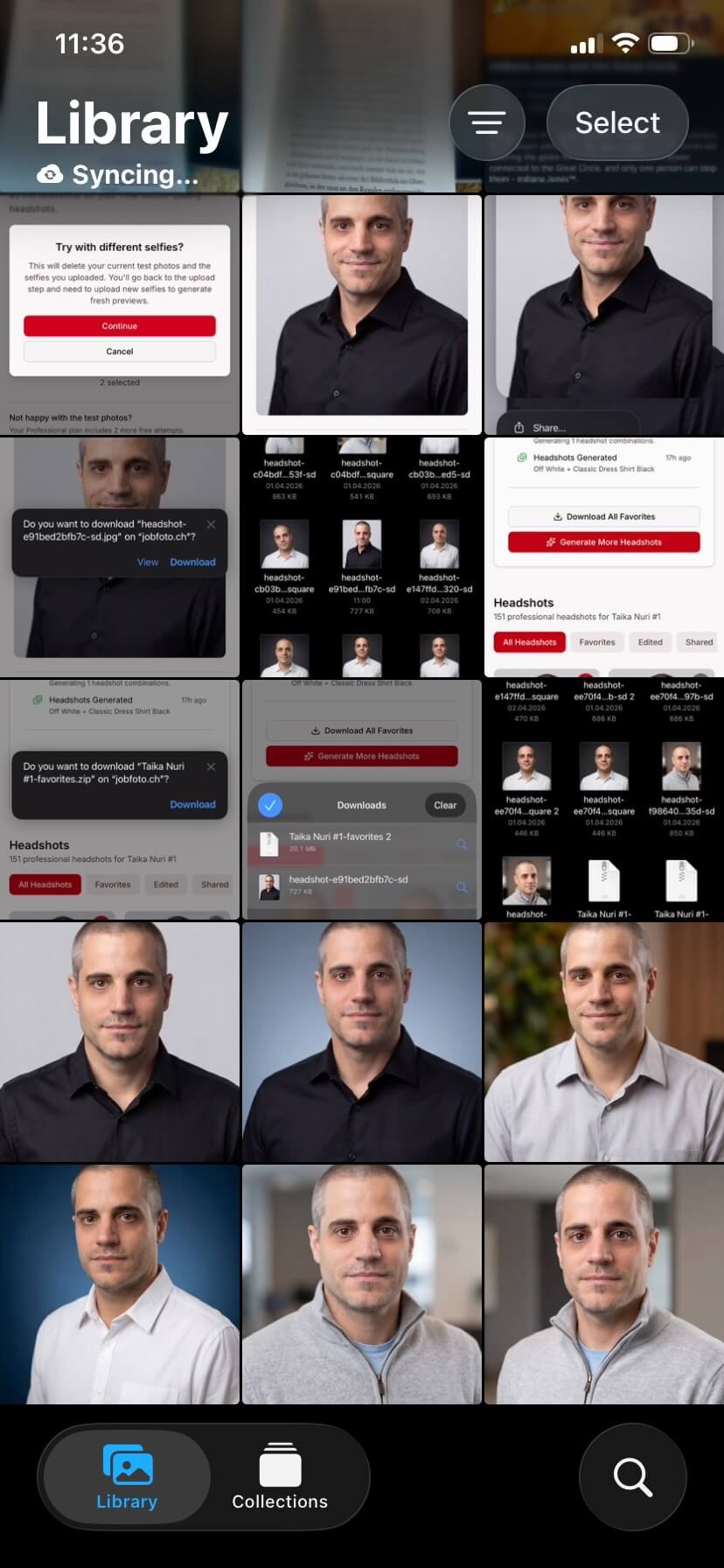
Oder über den Download-Button:
- Auf den Download-Button in der Vorschau tippen
- Safari zeigt eine Bestätigung – auf Laden tippen
- Auf das kleine Pfeilsymbol in der Adressleiste tippen, dann auf die Datei, um sie zu öffnen. Um sie später zu finden, die Dateien-App öffnen und unter iCloud Drive › Downloads oder Auf meinem iPhone › Downloads nachschauen
Favoriten als Zip
- Auf den Stern bei jedem Bewerbungsfoto tippen, das behalten werden soll
- Zur Profilübersicht gehen und auf Alle Favoriten herunterladen tippen
- Seitenverhältnis (Original, Quadrat 1:1 oder beides) und Datumspräfix im Dateinamen (Keins, US oder ISO 8601) wählen, dann auf Herunterladen tippen
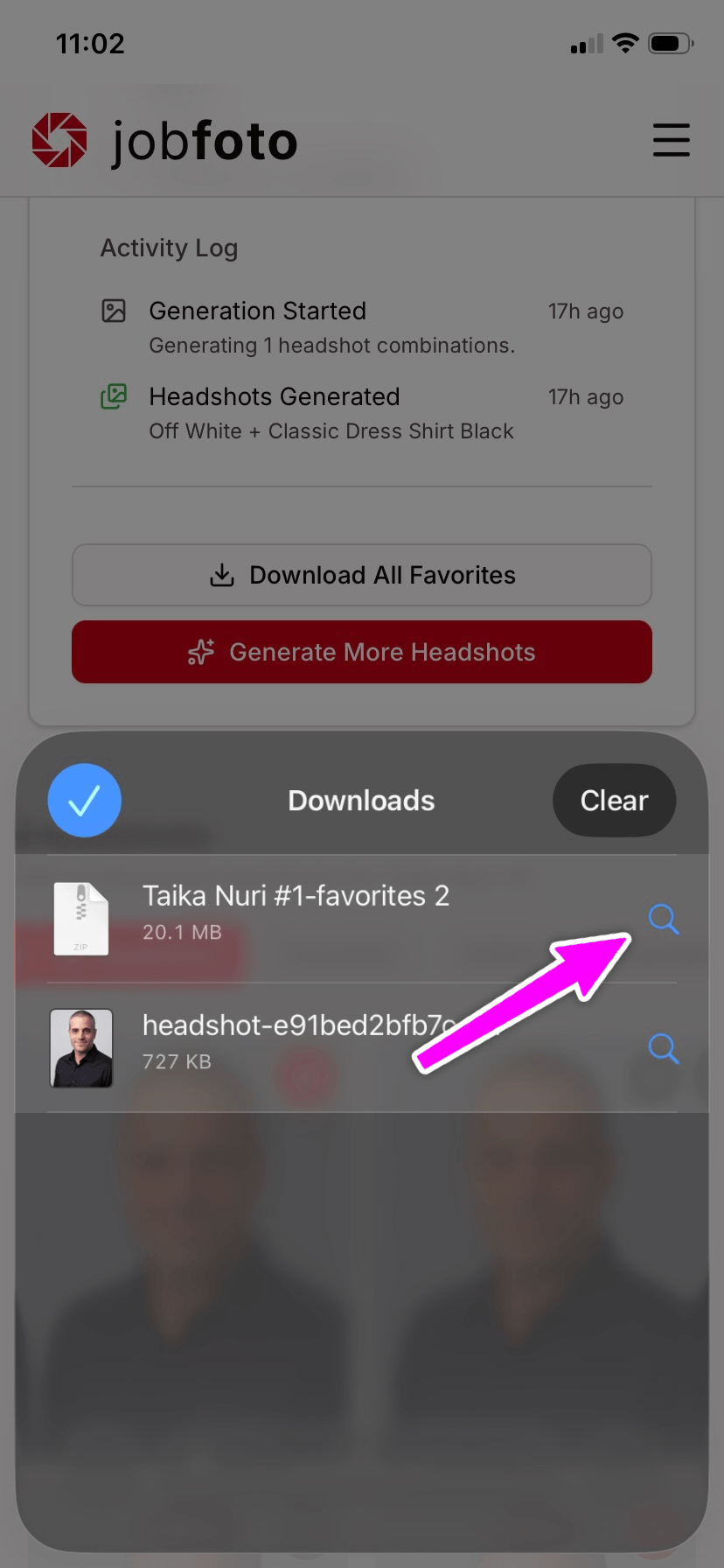
- Die Safari-Download-Aufforderung bestätigen
- Die Dateien-App öffnen, zu Downloads gehen und einmal auf die Zip-Datei tippen – iOS entpackt sie in einen Ordner direkt daneben
- Den neuen Ordner öffnen. Einzelne Fotos lange gedrückt halten, um sie in die Fotos-App zu sichern, oder sie direkt von dort teilen

Auf Android
Auf Android funktioniert es auf den meisten Geräten ähnlich. Die Screenshots unten zeigen Chrome und Files by Google – in Samsung Internet und Firefox ist der Ablauf nahezu identisch.
Einzelnes Bild
Am schnellsten geht es auf Android mit dem direkten Speichern in Google Fotos:
- Das Bewerbungsfoto in der Vorschau öffnen
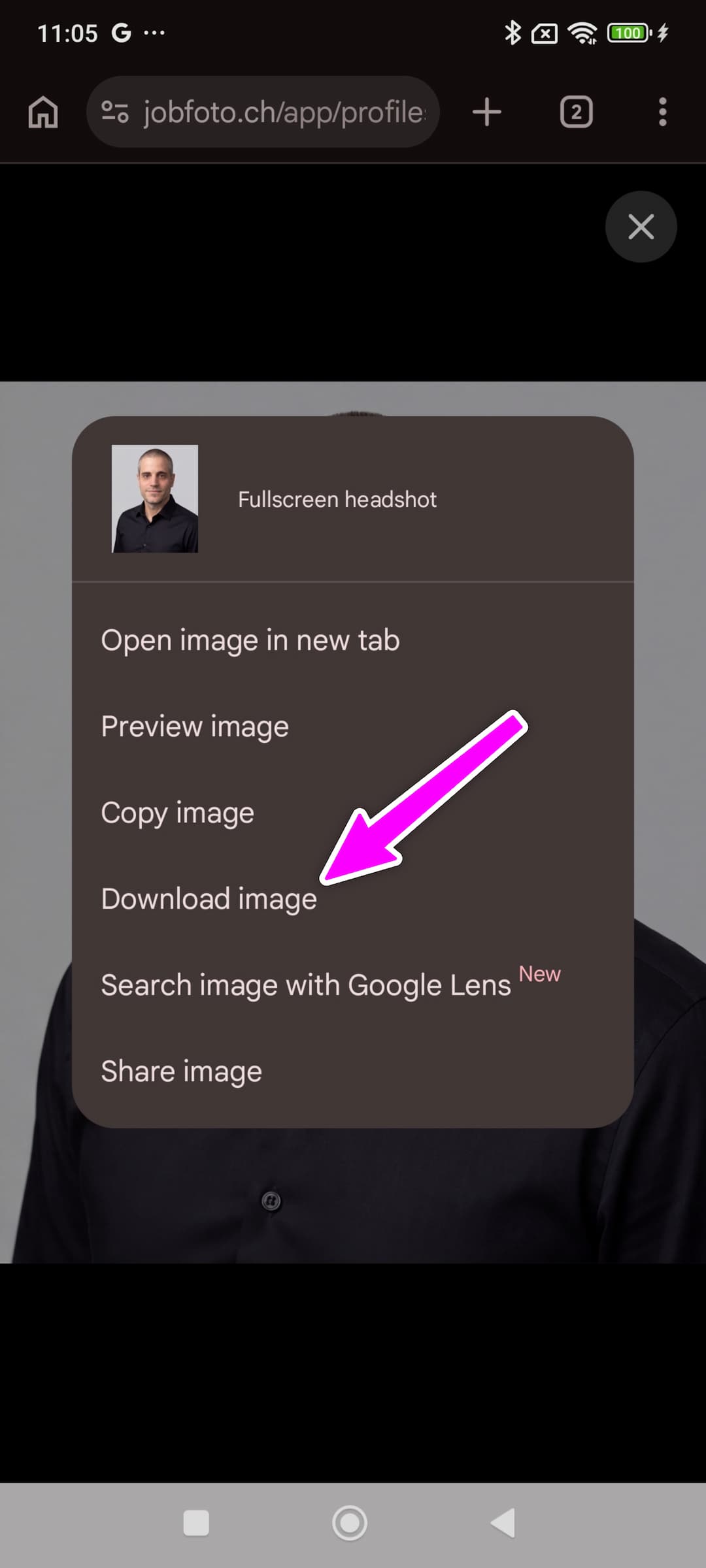
- Oben rechts auf den Vergrössern-Button tippen, um das Bild im Vollbild zu öffnen
- Das Bild lange gedrückt halten und Bild herunterladen oder Bild speichern wählen
- Das Bewerbungsfoto landet im Downloads-Ordner und erscheint automatisch in Google Fotos
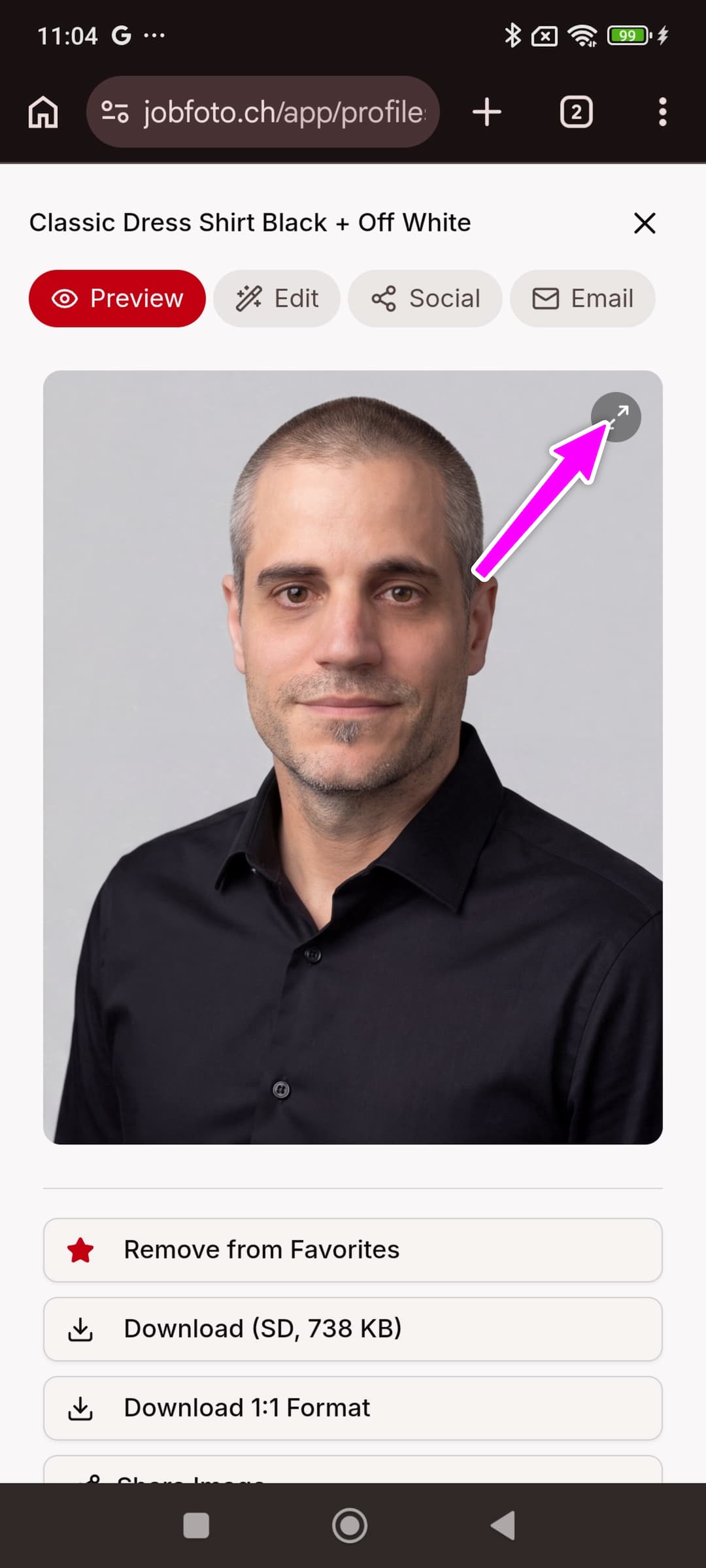
Oder über den Download-Button:
- Auf den Download-Button in der Vorschau tippen
- Chrome zeigt unten eine Download-Benachrichtigung – darauf tippen, um die Datei zu öffnen
- Um sie später zu finden, die Dateien-App (oder Files by Google) öffnen und zu Downloads gehen
Favoriten als Zip
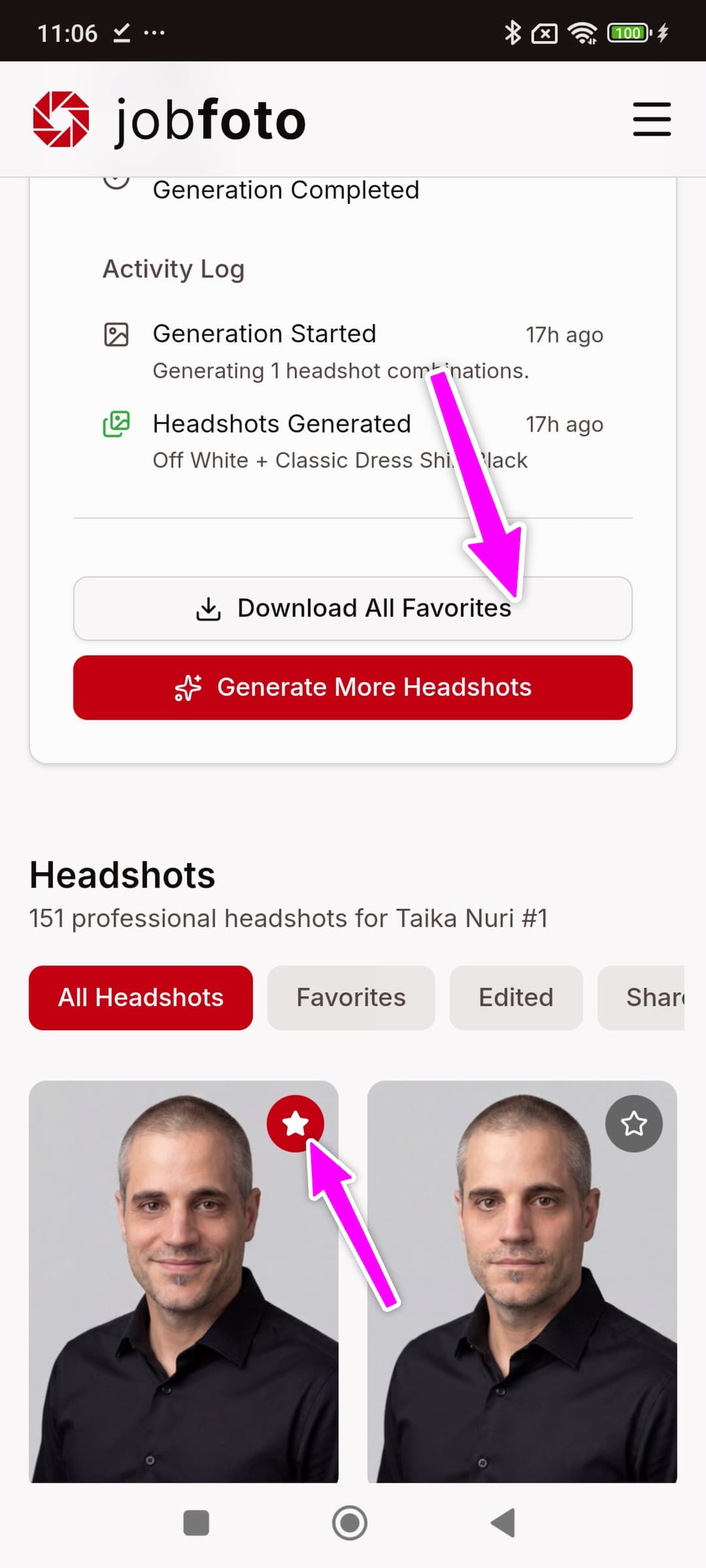
- Auf den Stern bei jedem Bewerbungsfoto tippen, das behalten werden soll
- Zur Profilübersicht gehen und auf Alle Favoriten herunterladen tippen
- Seitenverhältnis (Original, Quadrat 1:1 oder beides) und Datumspräfix im Dateinamen (Keins, US oder ISO 8601) wählen, dann auf Herunterladen tippen
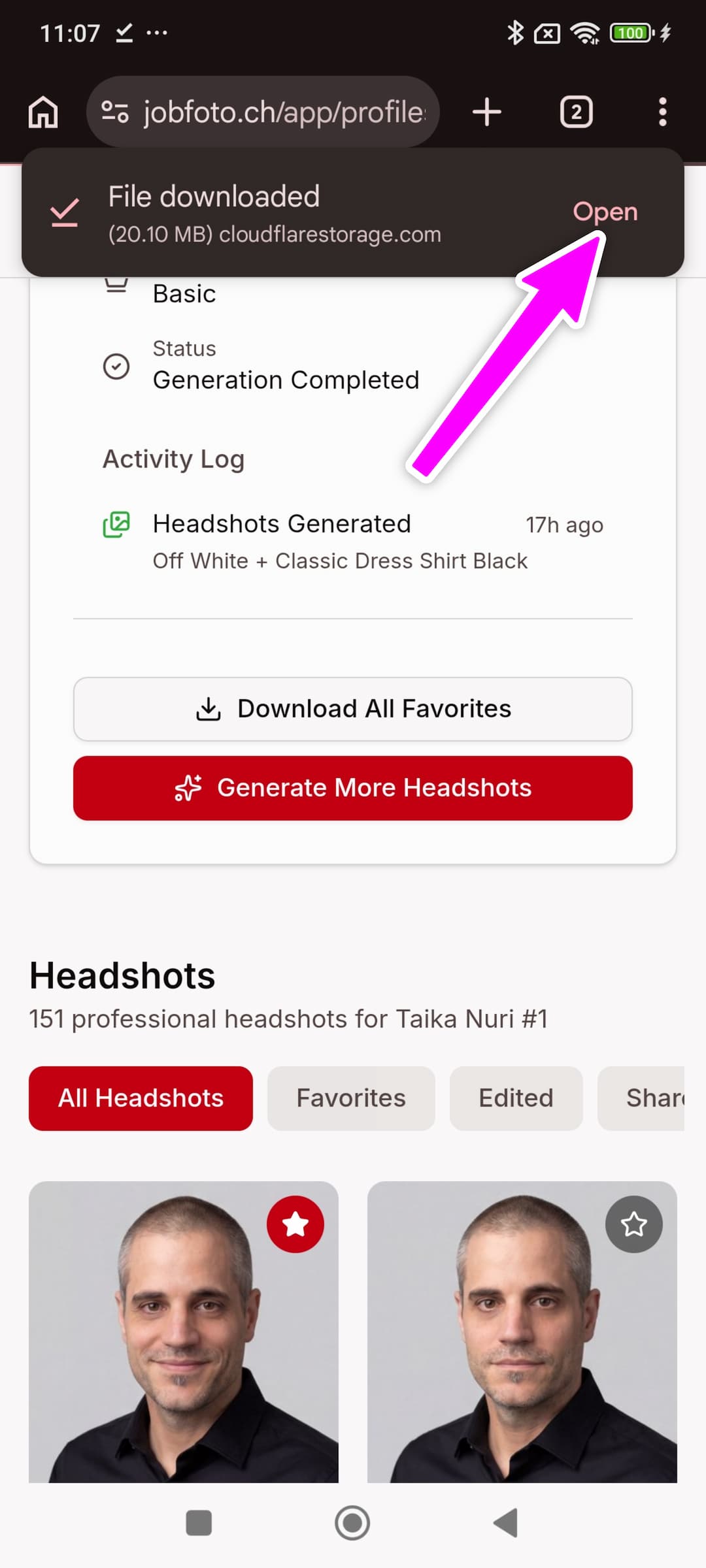
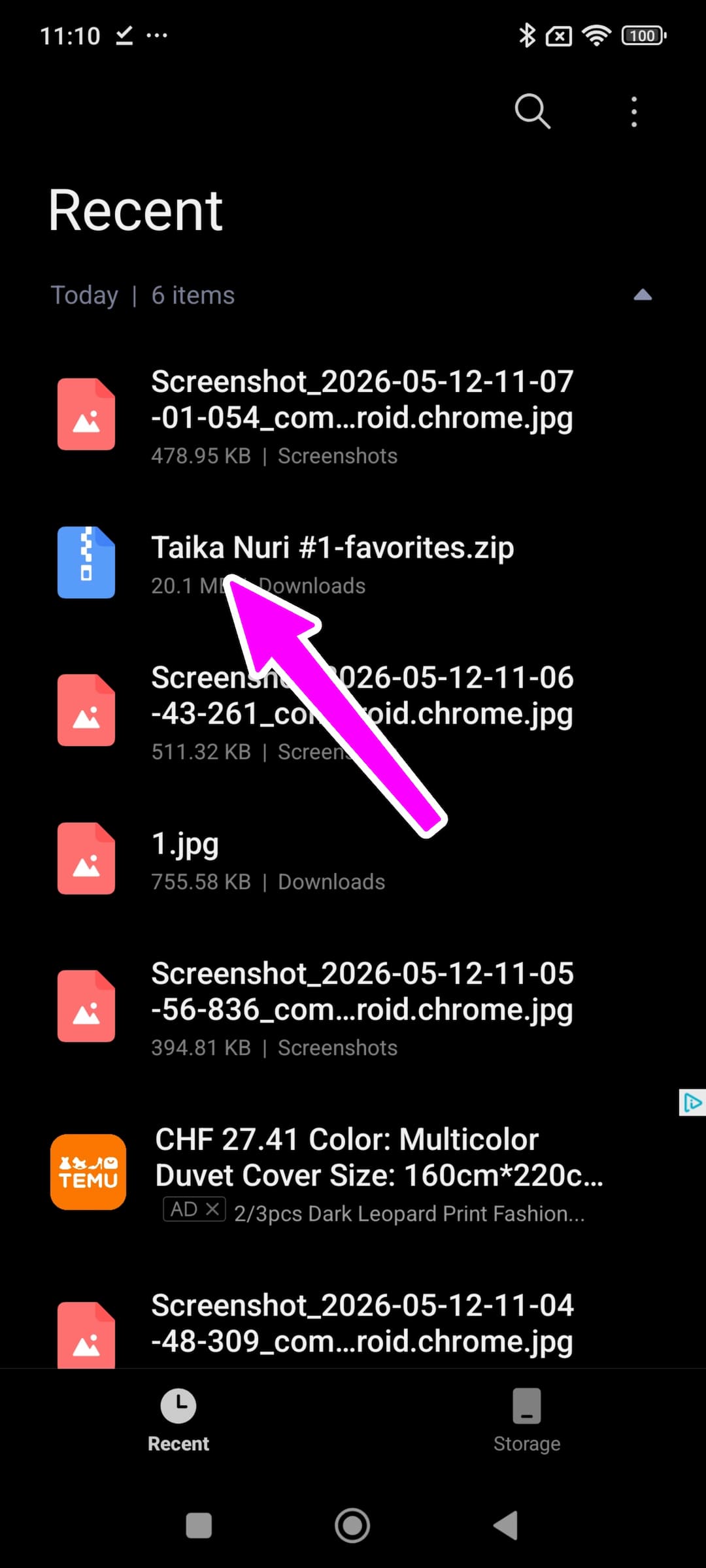
- Auf die Download-Benachrichtigung von Chrome warten und darauf tippen – oder die Zip-Datei unter Dateien › Downloads suchen
- Auf die Zip-Datei tippen und Entpacken wählen. Die Fotos erscheinen in einem neuen Ordner und werden von Google Fotos automatisch erkannt
Tipps
- Wenn möglich am Desktop herunterladen – die Bedienung ist einfacher und Zip-Dateien sind unkompliziert zu entpacken
- Auf dem Handy in Fotos / Google Fotos sichern, damit sich die Bilder später schnell finden lassen, ohne in der Dateien-App suchen zu müssen
- Nicht bis zum Ablauftag des Profils warten – die Fotos herunterladen, sobald die Favoriten ausgewählt sind
Kommen Sie nicht weiter? Kontaktieren Sie den Support – wir helfen Ihnen, die Bewerbungsfotos sicher herunterzuladen.